Dynamic Countdown Timers for Customer.io
Drive conversions in behavioral campaigns with real-time countdown timers that sync with your data-driven messaging
Start Free with Customer.io 10,000 free impressions a month · No watermark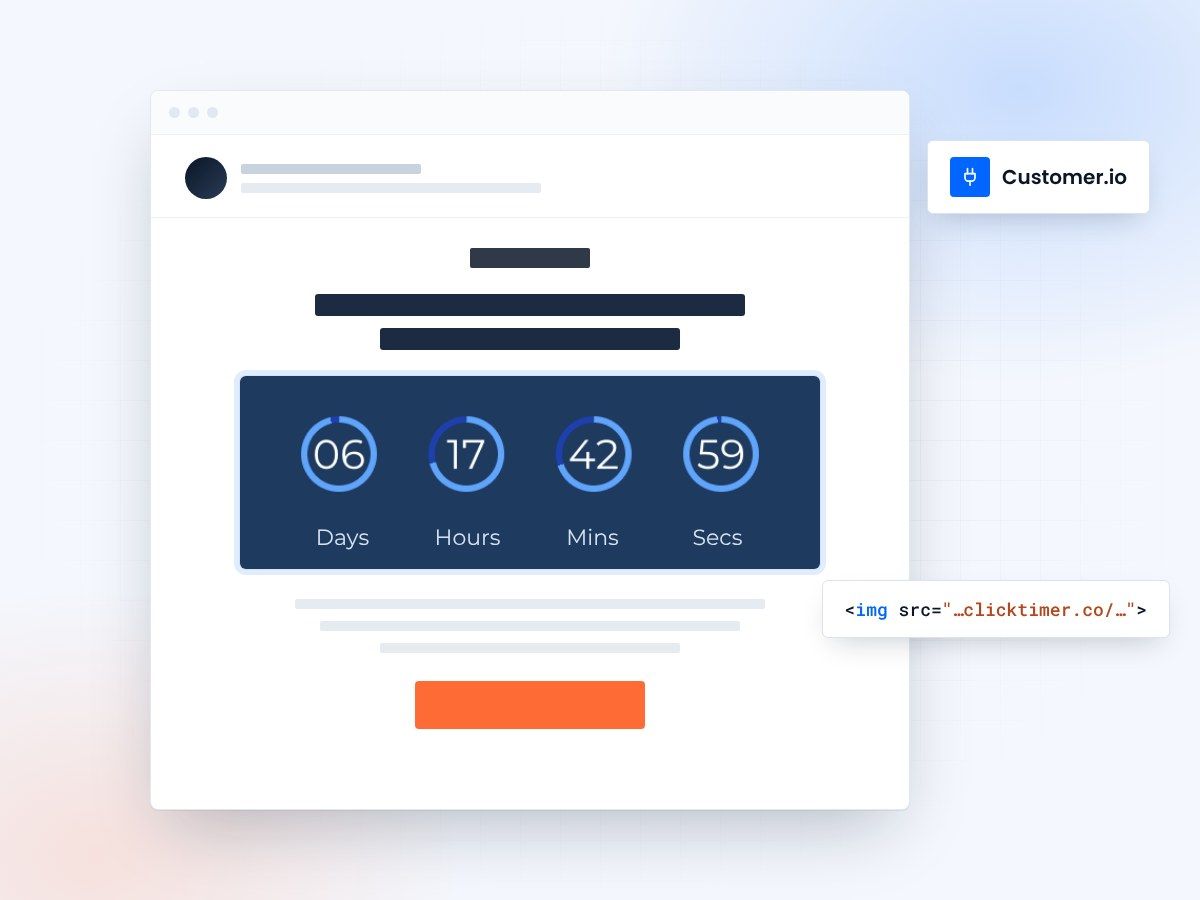
- Built for behavioral workflows
- One HTML block per campaign
- 10,000 free impressions a month
- No watermark, even on the free plan
Countdown timers for behavioral campaigns
Customer.io excels at behavioral, data-driven messaging for SaaS and product-led companies. Add ClickTimer's dynamic countdown timers to your campaigns and workflows to create urgency around trial expirations, feature launches, and renewal deadlines—perfectly timed to user actions and lifecycle stages.
Why use ClickTimer with Customer.io?
Perfect for behavioral workflows
Sync timers with trial endings, subscription renewals, and event-triggered campaigns
900+ fonts, full customization
Match your brand. No watermarks even on free tier.
Pay-as-you-go pricing
10K free impressions. No subscription, credits never expire.
Edit after sending
Update timer settings anytime, changes apply instantly.
How to add countdown timers to Customer.io
- Create your timerUse ClickTimer builder. Set date, colors, fonts.
- Copy the HTML codeClick Get Code to copy your snippet.
- Add HTML block in Customer.ioIn your campaign or workflow editor, add an HTML block (NOT image block).
- Paste and sendTimer updates in real-time on every email open.
Create your Customer.io countdown
Set the deadline, match your brand, copy the code into an HTML block. 10,000 free impressions a month, no credit card.
Already have an account?
Send Test Email
Enter your email to receive a preview of how this countdown looks in email campaigns.
Popular timer use cases for Customer.io
Trial expiration workflows
Countdown to trial end in automated drip sequences
Subscription renewal reminders
Create urgency before billing cycles and renewals
Feature launch campaigns
Build anticipation for new product releases
Onboarding milestone emails
Time-bound activation goals for new users
Re-engagement campaigns
Limited-time offers to win back dormant users
Event-triggered promos
Behavioral discounts with expiration deadlines
Frequently asked questions
Can I use Liquid tags with ClickTimer in Customer.io?
Yes. Create your timer in ClickTimer, then paste the HTML code into Customer.io. You can wrap it with Liquid conditionals or use Customer.io attributes to personalize surrounding content. The timer HTML itself remains static but updates dynamically on each email open.
Will timers work in behavioral workflows?
Absolutely. ClickTimer is perfect for Customer.io's event-triggered and behavioral workflows. Set your deadline once, and the timer counts down in real-time regardless of when each user enters the workflow or opens the email.
Do I need to add code to every email?
Only once per campaign or workflow. Paste the HTML code into an HTML block (not image block) in your Customer.io email editor. The same code works across all sends.
How does pricing work?
10,000 free impressions (email opens) with no watermark. After that, pay-as-you-go: €0.23/10K, €0.15/10K, or €0.06/10K depending on volume. No subscription, credits never expire.
Can I update the timer after sending a campaign?
Yes. Edit your timer settings in ClickTimer anytime—change the deadline, colors, or text. Updates apply instantly to all emails, even ones already sent.
Ready to boost your Customer.io conversions?
Create your free timer in 90 seconds. 10K impressions, no credit card.