Dynamic Countdown Timers for Drip
Boost e-commerce conversions with real-time countdown timers in your Drip workflows and campaigns
Start Free with Drip 10,000 free impressions a month · No watermark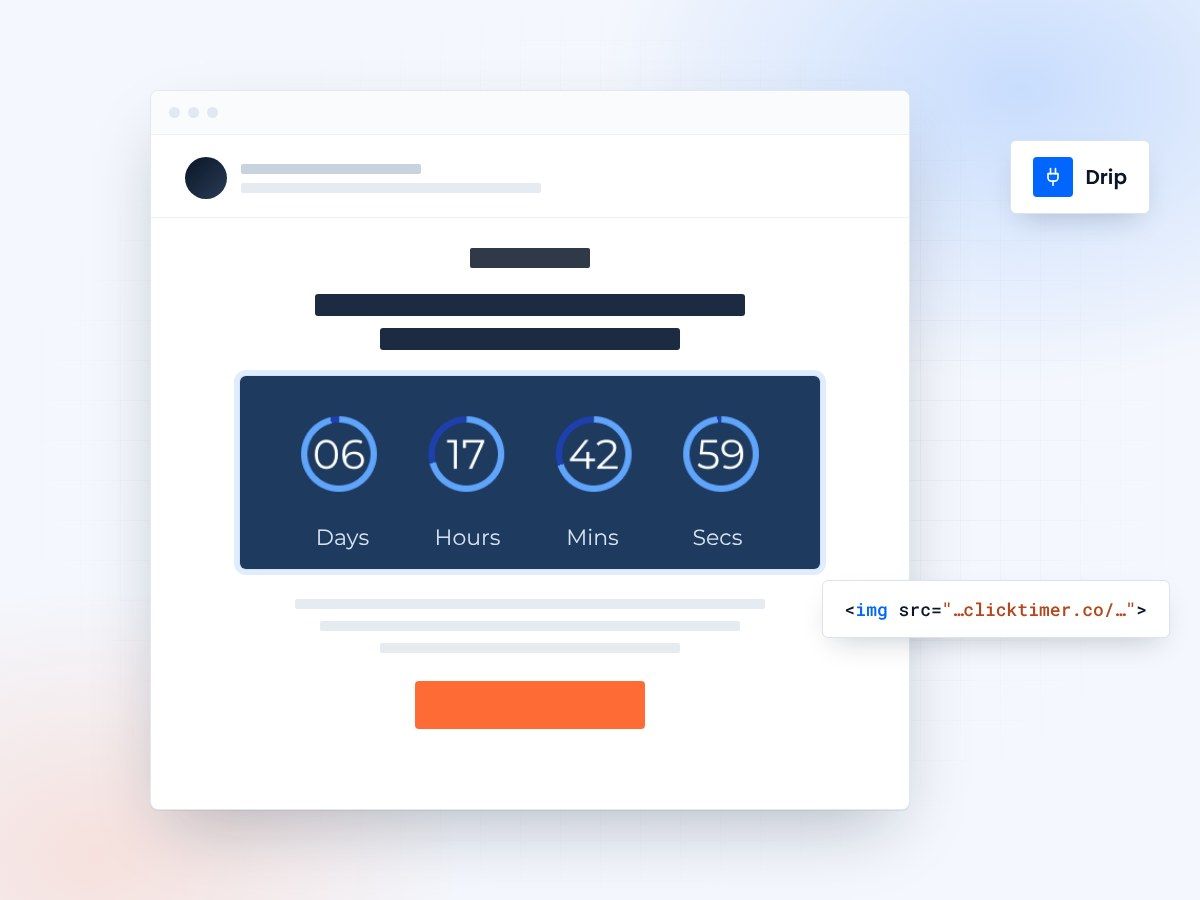
- Works in Drip HTML blocks
- No watermark, even on the free plan
- Credits that never expire
- 10,000 free impressions a month
Countdown timers for Drip campaigns
Drip empowers e-commerce brands with powerful automation workflows. ClickTimer adds real-time countdown timers to your campaigns—perfect for flash sales, abandoned cart sequences, and product drop announcements. Every timer updates dynamically on open, creating authentic urgency that drives clicks and revenue.
Why use ClickTimer with Drip?
Built for e-commerce workflows
Add timers to cart abandonment sequences, welcome series, and flash sale campaigns with zero coding.
900+ fonts, full customization
Match your brand. No watermarks even on free tier.
Pay-as-you-go pricing
10K free impressions. No subscription, credits never expire.
Edit after sending
Update timer settings anytime, changes apply instantly.
How to add countdown timers to Drip
- Create your timerUse ClickTimer builder. Set date, colors, fonts.
- Copy the HTML codeClick Get Code to copy your snippet.
- Add HTML block in DripIn your Drip email builder, add an HTML block (NOT image block).
- Paste and sendTimer updates in real-time on every email open.
Create your Drip countdown
Set the end date, match your brand, copy the code. 10,000 free impressions a month, no credit card.
Already have an account?
Send Test Email
Enter your email to receive a preview of how this countdown looks in email campaigns.
Popular timer use cases for Drip
Cart abandonment workflows
Add 24-hour timers to recover abandoned carts with discount expiry urgency
Flash sale campaigns
Countdown to sale end times in broadcast emails to drive immediate purchases
Product launch sequences
Build anticipation with timers in pre-launch email workflows
Limited stock alerts
Combine low inventory triggers with countdown timers for double urgency
VIP early access
Segment workflows with exclusive time-limited offers for top customers
Seasonal promotions
Black Friday, holiday sales with precise countdown to promotion end
Frequently asked questions
Do ClickTimer countdowns work in Drip workflows?
Yes. ClickTimer timers work perfectly in all Drip workflows and campaigns. Simply add the HTML code to any email in your automation sequence. The timer updates dynamically based on real-time, not when the email was sent.
Can I use different timers for different Drip segments?
Absolutely. Create multiple timers in ClickTimer and insert different codes into different workflow branches. Perfect for VIP vs. regular customer segments with different deadline offers.
How do I add the timer to my Drip email?
In the Drip email builder, click to add content and select the HTML block option. Paste your ClickTimer code there. Do NOT use an image block—timers require HTML blocks to function properly.
How much does ClickTimer cost for Drip users?
Your first 10,000 impressions are completely free with no watermark. After that, pay-as-you-go starts at €0.23/10K impressions. No subscription, no expiring credits.
Can I edit a timer after my Drip campaign is sent?
Yes. Update your timer design, deadline, or settings anytime in ClickTimer. Changes apply instantly to all sent emails—even those already in subscriber inboxes.
Ready to boost your Drip conversions?
Create your free timer in 90 seconds. 10K impressions, no credit card.