Dynamic Countdown Timers for AWeber
Boost launches, affiliate offers, and flash sales with real-time timers in your autoresponders and broadcasts
Start Free with AWeber 10,000 free impressions a month · No watermark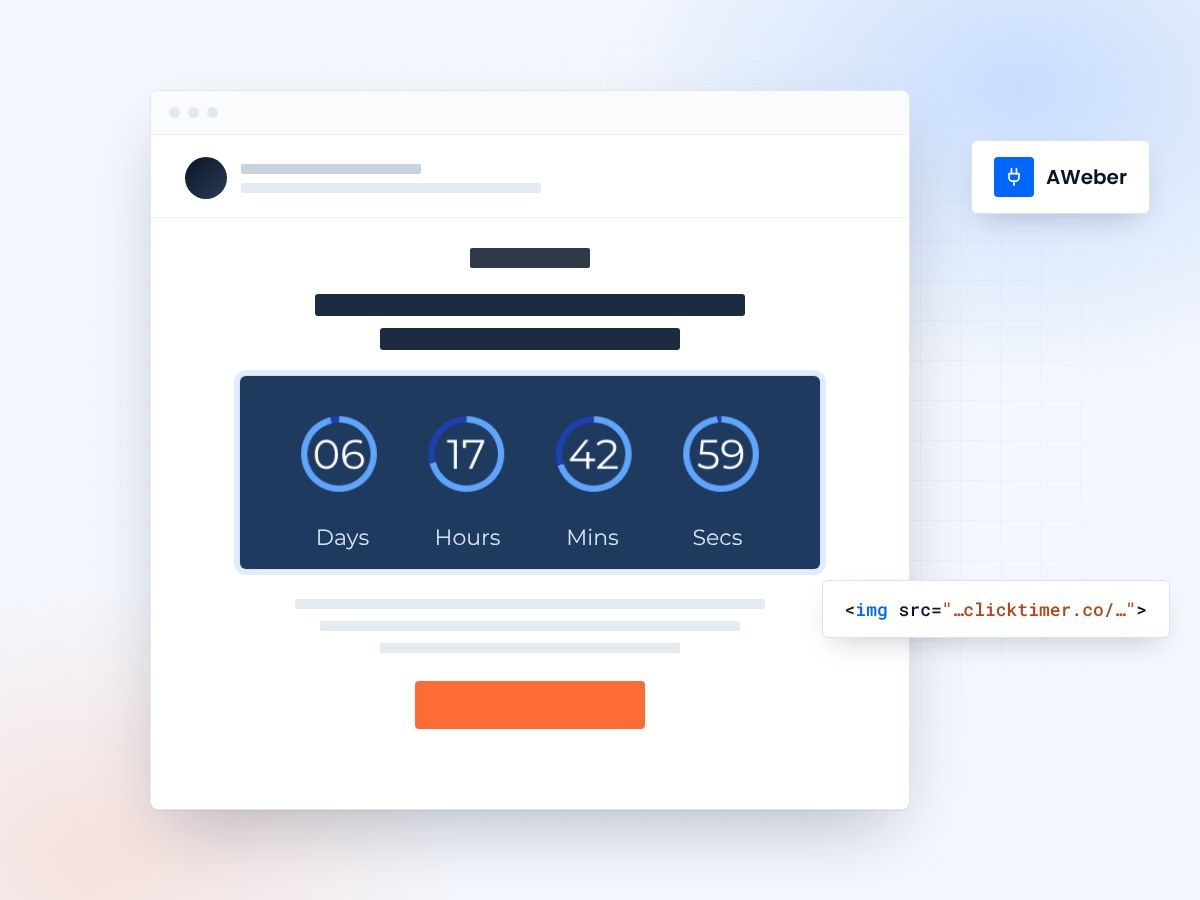
- Autoresponders and broadcasts
- Paste into an HTML block
- 10,000 free impressions a month
- No watermark, even on the free plan
Why use ClickTimer with AWeber?
As a solopreneur using AWeber, every email counts. Add dynamic countdown timers to your autoresponders and broadcasts to create urgency for product launches, affiliate promotions, and limited-time offers. ClickTimer integrates seamlessly with AWeber's drag-and-drop editor—no complex setup, just paste HTML and watch conversions climb.
- Perfect for autoresponders — Add evergreen timers to your welcome sequences, course launches, and follow-up campaigns.
- 900+ fonts, full customization — Match your brand. No watermarks even on free tier.
- Pay-as-you-go pricing — 10K free impressions. No subscription, credits never expire.
- Edit after sending — Update timer settings anytime, changes apply instantly.
How to add countdown timers to AWeber
- Create your timerUse ClickTimer builder. Set date, colors, fonts.
- Copy the HTML codeClick Get Code to copy your snippet.
- Add HTML block in AWeberIn your message editor, drag in an HTML block (NOT image block).
- Paste and sendTimer updates in real-time on every email open.
Popular timer use cases for AWeber
Product launch broadcasts
Build anticipation for digital products and courses with launch day countdowns
Affiliate promotions
Add urgency to commission deadlines and bonus cutoff dates
Flash sale emails
Drive immediate action on limited-time discounts and offers
Evergreen autoresponders
Create personalized urgency in welcome sequences with dynamic timers
Webinar registration
Increase signups with countdown to live training sessions
Early bird pricing
Highlight special pricing deadlines for courses and memberships
Create your AWeber countdown
Set the date, match your brand, copy the code. 10,000 free impressions a month, no credit card.
Already have an account?
Send Test Email
Enter your email to receive a preview of how this countdown looks in email campaigns.
Frequently asked questions
Does ClickTimer work in AWeber autoresponders?
Yes. ClickTimer works perfectly in both AWeber broadcasts and autoresponders. For evergreen funnels, you can create dynamic timers that countdown from when each subscriber joins your list.
Where do I paste the HTML code in AWeber?
In AWeber's drag-and-drop editor, drag an HTML block into your email template. Paste the ClickTimer HTML code into that block. Do not use an image block—timers require HTML to update dynamically.
Can I use countdown timers for affiliate promotions?
Absolutely. Many AWeber solopreneurs use ClickTimer to add urgency to affiliate campaigns—countdown to bonus deadlines, commission cutoffs, or special pricing windows.
Is there a free plan?
Yes. You get 10,000 free impressions with no watermark, no credit card required. After that, pay-as-you-go starts at €0.23 per 10K impressions. No monthly subscriptions, credits never expire.
Can I edit the timer after I send the email?
Yes. ClickTimer lets you update colors, fonts, dates, and settings anytime. Changes apply instantly to all emails already sent—no need to resend campaigns.
Ready to boost your AWeber conversions?
Create your free timer in 90 seconds. 10K impressions, no credit card.