Dynamic Countdown Timers for GetResponse
Boost webinar registrations, course launches, and coaching sales with live countdown timers in your GetResponse autoresponders and campaigns.
Start Free with GetResponse 10,000 free impressions a month · No watermark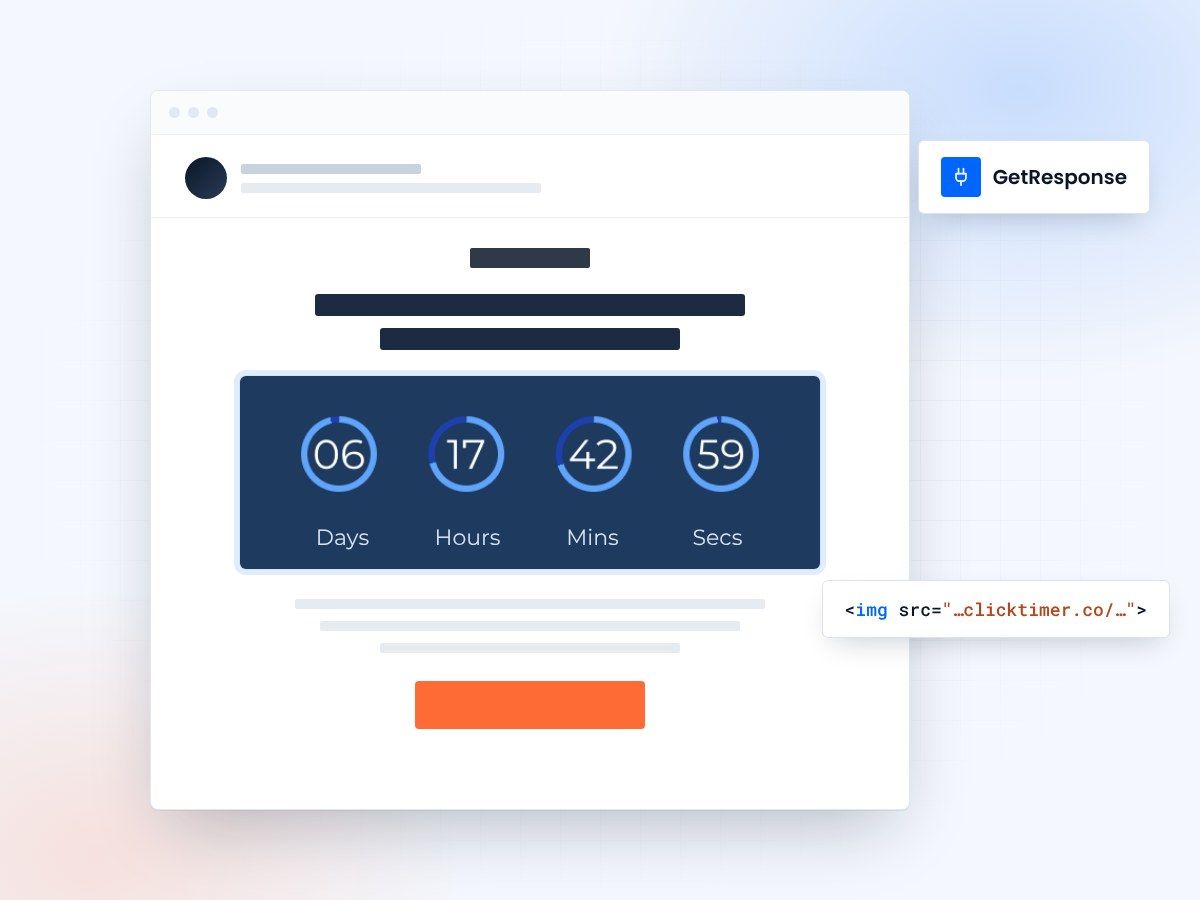
- Works in autoresponders and broadcasts
- Paste into an HTML block
- 10,000 free impressions a month
- No watermark, even on the free plan
Why use ClickTimer with GetResponse?
GetResponse users — coaches, course creators, and service businesses — rely on webinars and automated sequences to convert leads. Add real-time countdown timers to your autoresponders and broadcast emails to create urgency for webinar registrations, limited-time course offers, and coaching program deadlines. ClickTimer integrates seamlessly with GetResponse's email builder and landing pages.
- Perfect for autoresponders and webinar funnels Add urgency to your GetResponse automation sequences, webinar reminders, and follow-up campaigns.
- 900+ fonts, full customization Match your brand. No watermarks even on free tier.
- Pay-as-you-go pricing 10K free impressions. No subscription, credits never expire.
- Edit after sending Update timer settings anytime, changes apply instantly.
How to add countdown timers to GetResponse
1. Create your timer
Use ClickTimer builder. Set date, colors, fonts.
2. Copy the HTML code
Click Get Code to copy your snippet.
3. Add HTML block in GetResponse
In the Email Creator or autoresponder editor, drag the HTML block (NOT image block) into your layout.
4. Paste and send
Timer updates in real-time on every email open.
Create your GetResponse countdown
Set the date, match your brand, copy the HTML. 10,000 free impressions a month, no credit card.
Already have an account?
Send Test Email
Enter your email to receive a preview of how this countdown looks in email campaigns.
Popular timer use cases for GetResponse
Webinar registration deadlines
Drive last-minute signups with timers in webinar reminder emails and landing pages.
Course launch campaigns
Add urgency to launch sequences with countdown timers in autoresponder series.
Coaching program enrollments
Push coaching clients to book calls with deadline timers in follow-up emails.
Flash sales and limited offers
Promote time-sensitive discounts in broadcast newsletters and promotional campaigns.
Event countdown emails
Build excitement for summits, challenges, or live events with pre-launch timers.
Early bird pricing
Reward early action with timers showing when special pricing expires.
Frequently asked questions
Does ClickTimer work with GetResponse autoresponders?
Yes! Add the HTML code to any autoresponder message. The timer updates in real-time regardless of when subscribers receive the email in your sequence.
Can I use timers in GetResponse landing pages?
Absolutely. Use the HTML element in GetResponse Landing Page Creator to embed countdown timers for webinar registration pages, sales pages, or opt-in forms.
Do I need to use an image block?
No — always use the HTML block in GetResponse. Image blocks won't work. Drag the HTML element into your email, paste the ClickTimer code, and you're done.
How much does it cost?
Start with 10,000 free impressions (no watermark). After that, pay-as-you-go starts at €0.23 per 10K impressions. No subscription, credits never expire.
Can I change the timer after sending the email?
Yes. Edit your timer settings anytime in ClickTimer dashboard — changes apply instantly to all sent emails and landing pages.
Ready to boost your GetResponse conversions?
Create your timer in about a minute and paste it into a GetResponse HTML block.