Dynamic Countdown Timers for Omnisend
Boost conversions in your e-commerce campaigns with real-time countdown timers that update on every open
Start Free with Omnisend 10,000 free impressions a month · No watermark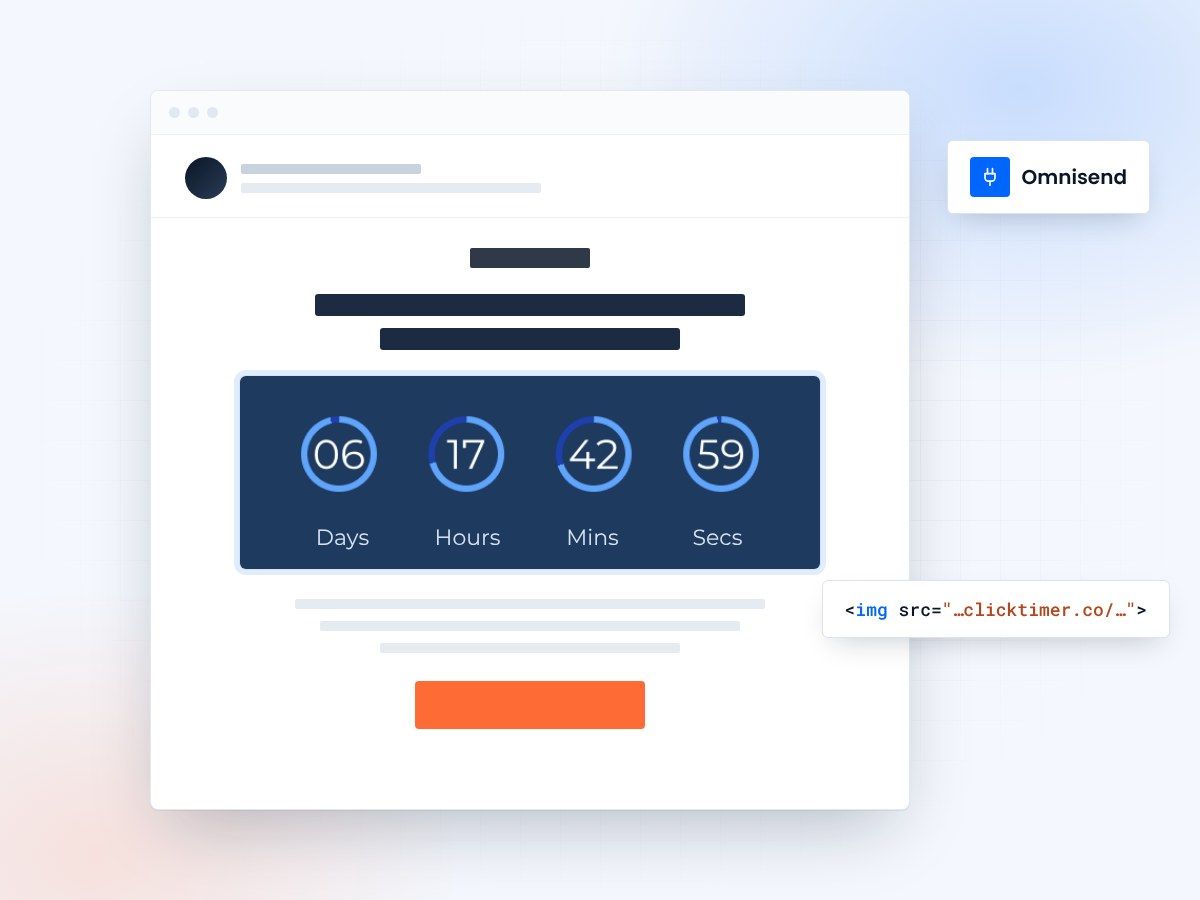
- Works in campaigns and automations
- Paste into an Omnisend HTML block
- 10,000 free impressions a month
- No watermark, even on the free plan
Why use ClickTimer with Omnisend?
Omnisend powers omnichannel e-commerce marketing with email and SMS. ClickTimer brings dynamic countdown timers to your Omnisend campaigns and automations—creating urgency for flash sales, abandoned cart recovery, and product drops. Every timer updates in real-time, showing accurate countdowns no matter when subscribers open your email.
- Perfect for e-commerce campaigns & automations — Add urgency to abandoned cart workflows, welcome series, and promotional campaigns with live timers
- 900+ fonts, full customization — Match your brand. No watermarks even on free tier.
- Pay-as-you-go pricing — 10K free impressions. No subscription, credits never expire.
- Edit after sending — Update timer settings anytime, changes apply instantly.
How to add countdown timers to Omnisend
1. Create your timer
Use ClickTimer builder. Set date, colors, fonts.
2. Copy the HTML code
Click Get Code to copy your snippet.
3. Add HTML block in Omnisend
In your campaign or automation workflow, drag the HTML block (NOT image block) into your email.
4. Paste and send
Timer updates in real-time on every email open.
Create your Omnisend countdown
Set the end date, match your brand, copy the HTML. 10,000 free impressions a month, no credit card.
Already have an account?
Send Test Email
Enter your email to receive a preview of how this countdown looks in email campaigns.
Popular timer use cases for Omnisend
Cart abandonment recovery
Add 2-hour timers to abandoned cart automations to recover more sales with urgency
Flash sale campaigns
Countdown to end-of-sale in promotional campaigns and segments for FOMO-driven conversions
Product launch countdowns
Build anticipation with pre-launch timers in welcome series and teaser campaigns
Limited-time discounts
Show expiring discount codes in post-purchase and win-back automations
Free shipping deadlines
Highlight cutoff times for holiday shipping in seasonal campaigns
Browse abandonment follow-ups
Convert browsers into buyers with time-limited offers in browse abandonment workflows
Frequently asked questions
Can I use ClickTimer timers in Omnisend automation workflows?
Yes. ClickTimer works perfectly in all Omnisend automations—cart abandonment, welcome series, post-purchase, and browse abandonment workflows. Just add the HTML block and paste your timer code.
Do timers work with Omnisend's SMS features?
ClickTimer timers are designed for email. For SMS, you can include a link to a landing page with a timer, but dynamic timers cannot be embedded directly in text messages.
Will timers display correctly on mobile devices?
Absolutely. ClickTimer generates responsive HTML that adapts to all screen sizes, ensuring perfect display in Omnisend emails across desktop, mobile, and tablet.
How is pricing calculated for automation workflows?
Each time a subscriber opens an email containing your timer, it counts as one impression. You get 10K free impressions, then pay only €0.23 per 10K (decreasing with volume). Credits never expire.
Can I A/B test emails with timers in Omnisend?
Yes. Create different timer designs in ClickTimer and test them using Omnisend's split testing feature to see which urgency style drives better conversions for your store.
Ready to boost your Omnisend conversions?
Create your free timer in 90 seconds. 10K impressions, no credit card.