Email Client Compatibility for Countdown Timers
Ensure every subscriber sees your countdown — regardless of their email client.
Create Your Timer — Free 10,000 free impressions a month · No watermark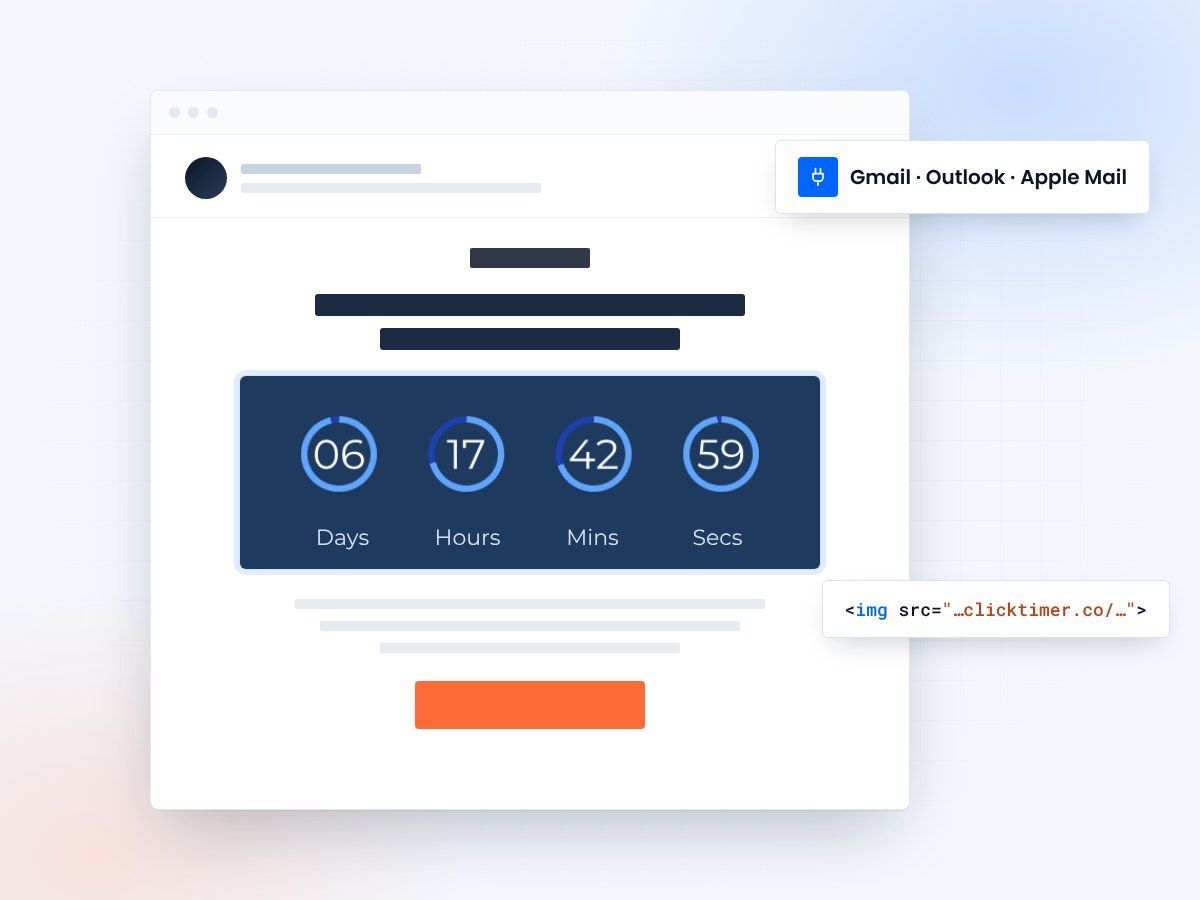
- Image timers work in 90%+ of clients
- Outlook still shows the time remaining
- Scales fluidly on mobile
- No watermark, even on the free plan
Why email client compatibility matters
Email countdown timers are among the most powerful conversion tools available to marketers. They create urgency, drive clicks, and boost revenue. But here's the catch: not every email client renders them the same way. A beautifully animated countdown in Apple Mail might appear as a static image — or worse, a broken box — in Outlook. Understanding these differences is essential for any marketer who wants consistent results across their entire subscriber base.
The email rendering landscape is fragmented. Gmail uses its own image proxy. Outlook relies on Microsoft Word's rendering engine. Apple Mail supports animated GIFs natively. Yahoo strips certain HTML attributes. Each client has quirks that affect how your countdown timer appears to the end user, and ignoring these differences means leaving conversions on the table.
How major email clients handle countdown timers
Countdown timers in email typically come in two flavors: animated GIFs generated server-side and served as images, or HTML/CSS-based animations embedded directly in the email. The first approach — used by ClickTimer — has far better compatibility because almost every email client supports images. The second approach breaks in most clients except Apple Mail and a few others that support CSS animations.
| Email Client | Animated GIF | CSS Animation | Market Share |
|---|---|---|---|
| Apple Mail | Full support | Full support | ~52% |
| Gmail (Web) | Full support | Stripped | ~29% |
| Gmail (Mobile) | Full support | Stripped | Incl. above |
| Outlook 2019+ | First frame only | Not supported | ~4% |
| Outlook.com | Full support | Stripped | ~3% |
| Yahoo Mail | Full support | Stripped | ~3% |
| Samsung Mail | Full support | Not supported | ~2% |
The Outlook challenge: handling the first-frame fallback
Desktop Outlook (2013, 2016, 2019, and Microsoft 365) uses the Word rendering engine, which only displays the first frame of animated GIFs. This means your countdown timer will appear as a static image. The solution is designing your timer's first frame to be meaningful on its own — it should clearly show the countdown value and urgency message even without animation.
ClickTimer handles this automatically. The generated timer image always starts with the current countdown state, so even Outlook users see the exact time remaining when they open the email. No extra configuration needed. The first frame is optimized to convey urgency with or without animation.
Pro tip: test before you send
Use tools like Litmus or Email on Acid to preview your countdown timer across 90+ email clients before hitting send. Focus on Outlook desktop, Gmail, and Apple Mail — these three cover the vast majority of your audience. With ClickTimer's image-based approach, you'll see consistent results across all of them, with the only variation being animation support in Outlook desktop.
Create a timer that works in every inbox
An image timer that renders in Gmail, Outlook and Apple Mail. 10,000 free impressions a month, no credit card.
Already have an account?
Send Test Email
Enter your email to receive a preview of how this countdown looks in email campaigns.
Image blocking, dark mode and mobile
Image blocking and fallback strategies
Some email clients block images by default until the user clicks "show images." Corporate Outlook installations often do this. When images are blocked, your countdown timer won't display at all. This is where alt text becomes critical. Always include descriptive alt text on your timer image, such as "Sale ends in 24 hours — Shop Now" so the urgency message still comes through even without the visual countdown.
Beyond alt text, consider your email layout. Don't rely solely on the countdown timer to convey urgency. Reinforce the deadline in your headline, body copy, and call-to-action button text. The timer should amplify urgency, not be the only source of it. This way, even subscribers with images blocked will understand the time-sensitive nature of your offer.
Dark mode compatibility
Dark mode has become mainstream, and it affects how countdown timers appear. Apple Mail, Gmail, and Outlook all have dark mode variants that can invert colors or add dark backgrounds behind images. A white-background countdown timer may look jarring against a dark email body. Consider using transparent backgrounds or dark-friendly color schemes for your timers.
ClickTimer offers customizable backgrounds and color options, letting you create timers that look great in both light and dark mode. The best approach is to choose a background color that complements your email design in both modes, or use a slightly off-white or neutral background that works universally.
Mobile rendering considerations
Over 60% of emails are opened on mobile devices, so your countdown timer must look great on small screens. Image-based timers scale well because they respond to the width of their container. Set your timer image to width="100%" in your HTML so it resizes fluidly. Avoid fixed pixel widths that could cause horizontal scrolling on phones.
Also consider file size. Large GIF files load slowly on mobile networks, which can cause your timer to appear blank for several seconds. ClickTimer generates optimized images that balance visual quality with file size, typically under 50KB, ensuring fast load times even on 3G connections.
Frequently asked questions
Do countdown timers work in Gmail?
Yes. Gmail fully supports animated GIF-based countdown timers like those from ClickTimer. Gmail caches images through its proxy, so the timer updates each time the email is opened.
Why does my timer look static in Outlook?
Desktop Outlook uses Word's rendering engine which only shows the first frame of GIFs. The timer still displays the correct countdown value — it just doesn't animate. This affects a small percentage of email opens.
How do I handle image blocking?
Always add descriptive alt text to your timer image and reinforce urgency in your email copy. This ensures the message comes through even when images are blocked by corporate email policies.
Will my timer work in dark mode?
Yes, but consider your timer's background color. Use neutral or complementary backgrounds that look good in both light and dark mode. ClickTimer's customization options make this easy.
Try ClickTimer free
Create your first countdown timer in 30 seconds. Works in every major email client.