Dynamic Countdown Timers for HubSpot
Drive demos, trials, and registrations with urgency in your B2B workflows and sales sequences
Start Free with HubSpot 10,000 free impressions a month · No watermark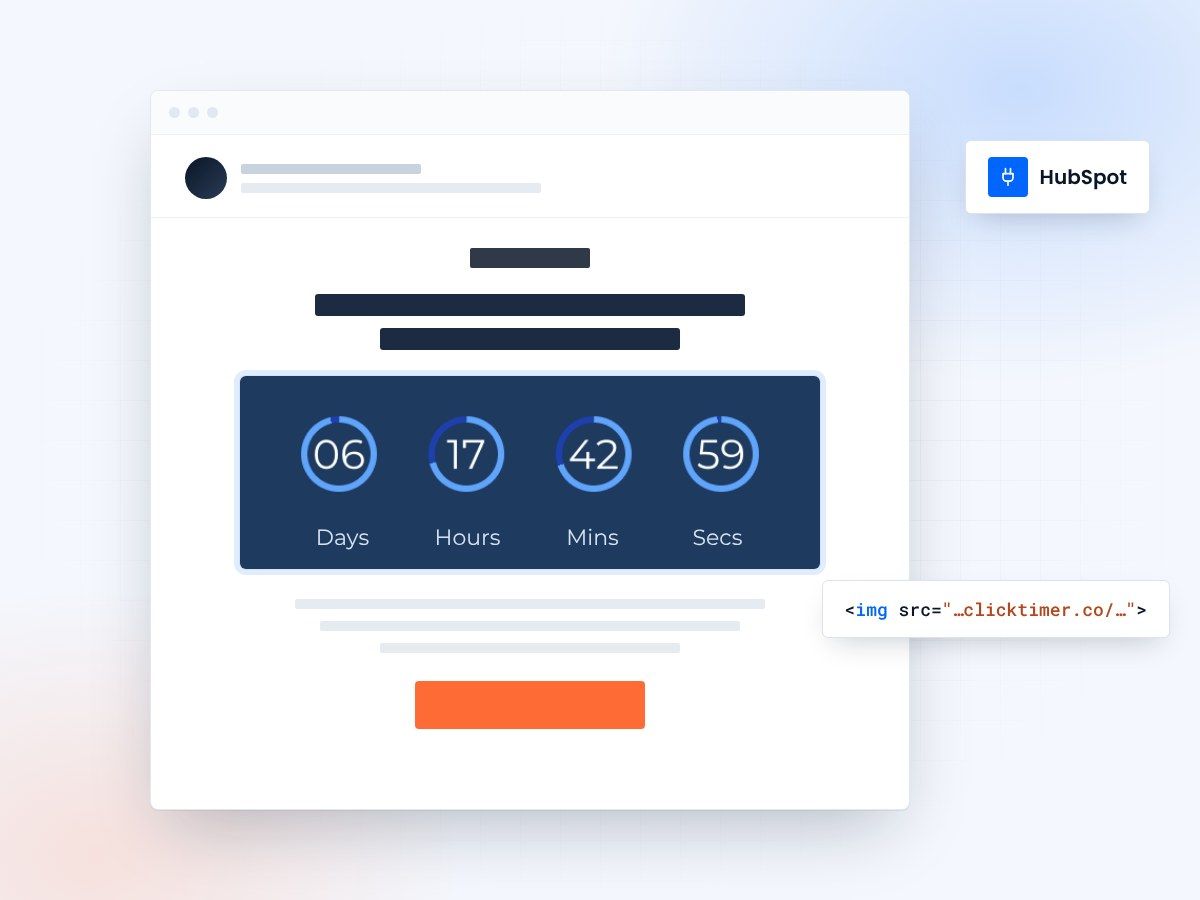
- Works in workflows and sequences
- Paste into an HTML module
- 10,000 free impressions a month
- No watermark, even on the free plan
Countdown timers for HubSpot emails
HubSpot powers your B2B marketing automation, but static emails leave conversions on the table. ClickTimer adds dynamic countdown timers to your workflows and sequences—boosting demo bookings, trial sign-ups, and event registrations with real urgency. No complex integrations, just pure HTML that updates in real-time across every contact in your CRM.
Why use ClickTimer with HubSpot?
Built for workflows and sequences
Personalized deadline timers for each contact. Perfect for drip campaigns and sales follow-ups.
900+ fonts, full customization
Match your brand. No watermarks even on free tier.
Pay-as-you-go pricing
10K free impressions. No subscription, credits never expire.
Edit after sending
Update timer settings anytime, changes apply instantly across all active campaigns.
How to add countdown timers to HubSpot
- Create your timerUse ClickTimer builder. Set date, colors, fonts.
- Copy the HTML codeClick Get Code to copy your snippet.
- Add an HTML block in HubSpotIn your workflow or marketing email editor, drag an HTML module (NOT image block) into your template.
- Paste and sendTimer updates in real-time on every email open across your entire contact list.
Popular timer use cases for HubSpot
Free trial expiry
Trigger workflows when trial ends in 3 days with countdown to conversion
Demo booking deadlines
Limited slots for product demos this week—countdown to calendar link
Webinar registrations
Drive sign-ups with live countdown to event start in nurture sequences
Proposal expiration
Sales sequences with timer for quoted pricing validity period
Early bird pricing
Upgrade offers for existing customers with time-limited discounts
Annual contract renewal
Automated renewal reminders in lifecycle workflows with visual urgency
Create your HubSpot countdown
Set the date, match your brand, copy the HTML. 10,000 free impressions a month, no credit card.
HubSpot countdown timer examples
Live timers built for HubSpot. Open one to see the design specs, the copy that goes with it and how to add it.
Already have an account?
Send Test Email
Enter your email to receive a preview of how this countdown looks in email campaigns.
Frequently asked questions
Does ClickTimer work with HubSpot workflows and sequences?
Yes. Use the HTML module in any HubSpot marketing email, workflow email, or sales sequence. The timer updates in real-time for every contact who opens it. For personalized timers (e.g., trial expiry per user), use HubSpot tokens in the timer URL parameters.
Can I use timers in HubSpot CRM email templates?
Absolutely. Add the HTML code to any one-to-one email template in your CRM. Perfect for sales reps sending personalized follow-ups with deadline urgency for proposals or demos.
How much does ClickTimer cost with HubSpot?
First 10K impressions are free with no watermark. After that, pay-as-you-go: €0.23/10K impressions at low volume, down to €0.06/10K at scale. No subscription, credits never expire.
Do I need developer help to install timers in HubSpot?
No coding needed. Just copy HTML from ClickTimer, drag an HTML module into your HubSpot email editor, paste, and publish. Takes under 90 seconds.
Can I A/B test emails with countdown timers in HubSpot?
Yes. Use HubSpot's built-in A/B testing for marketing emails. Test timer vs. no timer, or different timer designs. Track performance in HubSpot analytics to optimize conversions.
Ready to boost your HubSpot conversions?
Create your free timer in 90 seconds. 10K impressions, no credit card.