Dynamic Countdown Timers for Mailchimp
Drive urgency in campaigns and automations. Perfect for small businesses running sales, events, and promotions.
Start Free with Mailchimp 10,000 free impressions a month · No watermark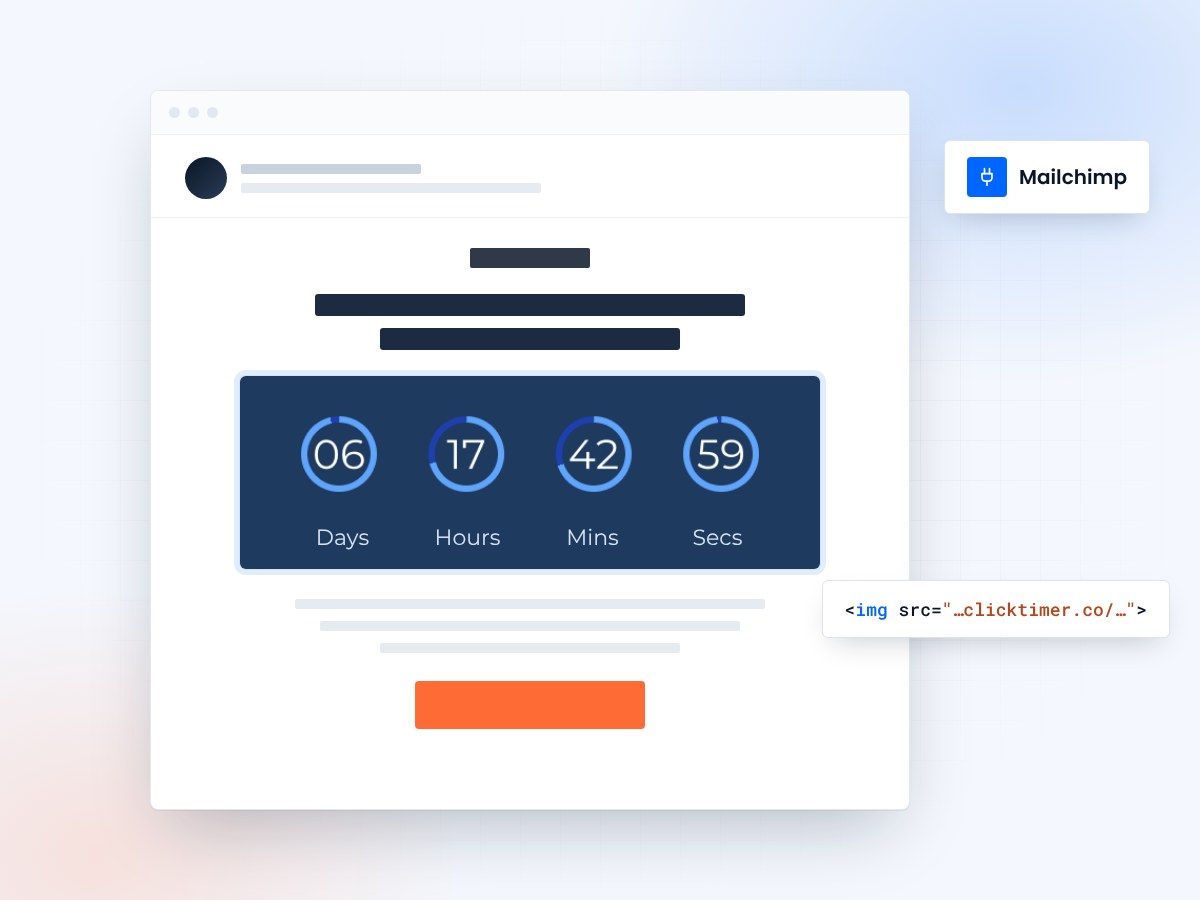
- Works in campaigns and automations
- No watermark, even on the free plan
- 10,000 free impressions a month
- Edit live after sending
Why use ClickTimer with Mailchimp?
Small businesses using Mailchimp need every advantage to stand out in crowded inboxes. ClickTimer adds real-time countdown timers to your campaigns and automations, creating urgency that drives clicks and conversions. Whether you're running a weekend sale, promoting an event, or launching a new product, timers make your offers impossible to ignore.
- Works in campaigns and automations — Add timers to welcome series, abandoned cart flows, seasonal campaigns, and more.
- 900+ fonts, full customization — Match your brand. No watermarks even on free tier.
- Pay-as-you-go pricing — 10K free impressions. No subscription, credits never expire.
- Edit after sending — Update timer settings anytime, changes apply instantly.
How to add countdown timers to Mailchimp
1. Create your timer
Use ClickTimer builder. Set date, colors, fonts.
2. Copy the HTML code
Click Get Code to copy your snippet.
3. Add HTML block in Mailchimp
In your campaign or automation email, drag a Code block (NOT image block) into your template.
4. Paste and send
Timer updates in real-time on every email open.
Create your Mailchimp countdown
Set the date, match your brand, copy the code. 10,000 free impressions a month, no credit card.
Mailchimp countdown timer examples
Live timers built for Mailchimp. Open one to see the design specs, the copy that goes with it and how to add it.
Already have an account?
Send Test Email
Enter your email to receive a preview of how this countdown looks in email campaigns.
Popular timer use cases for Mailchimp
Flash sale campaigns
Create urgency for 24-48 hour promotions that drive immediate purchases
Event registration deadlines
Boost attendance for webinars, workshops, or local business events
Seasonal campaign countdowns
Build anticipation for holiday sales, Black Friday, or seasonal launches
Limited inventory alerts
Add FOMO to low-stock products or exclusive offers
Welcome series offers
Give new subscribers a time-limited discount in your automation
Re-engagement campaigns
Win back inactive subscribers with expiring comeback offers
Frequently asked questions
Do countdown timers work in Mailchimp automations?
Yes. ClickTimer works perfectly in both Mailchimp campaigns and automations. The timer updates in real-time whenever a recipient opens the email, making it ideal for evergreen sequences like welcome series or abandoned cart flows.
Where do I paste the timer code in Mailchimp?
In your email editor, drag a Code block (found under Content blocks) into your template. Paste the ClickTimer HTML code there. Do NOT use an image block—timers need HTML to update dynamically.
Can I use ClickTimer on Mailchimp's free plan?
Absolutely. ClickTimer works with all Mailchimp plans, including free. You get 10,000 free timer impressions with ClickTimer (no watermark), then pay-as-you-go pricing starts at just €0.23 per 10K impressions.
Will the timer display correctly on mobile devices?
Yes. ClickTimer timers are fully responsive and display beautifully on all devices and email clients, including Gmail, Outlook, Apple Mail, and mobile apps.
Can I edit the timer after sending my Mailchimp campaign?
Yes. You can update your timer's end date, colors, or settings anytime from your ClickTimer dashboard. Changes apply instantly to all sent emails—no need to resend.
Ready to boost your Mailchimp conversions?
Create your free timer in 90 seconds. 10K impressions, no credit card.