Email Design Best Practices
Complete design guide for countdown timers in emails. Layouts, colors, and responsiveness.
Create Your Timer — Free 10,000 free impressions a month · No watermark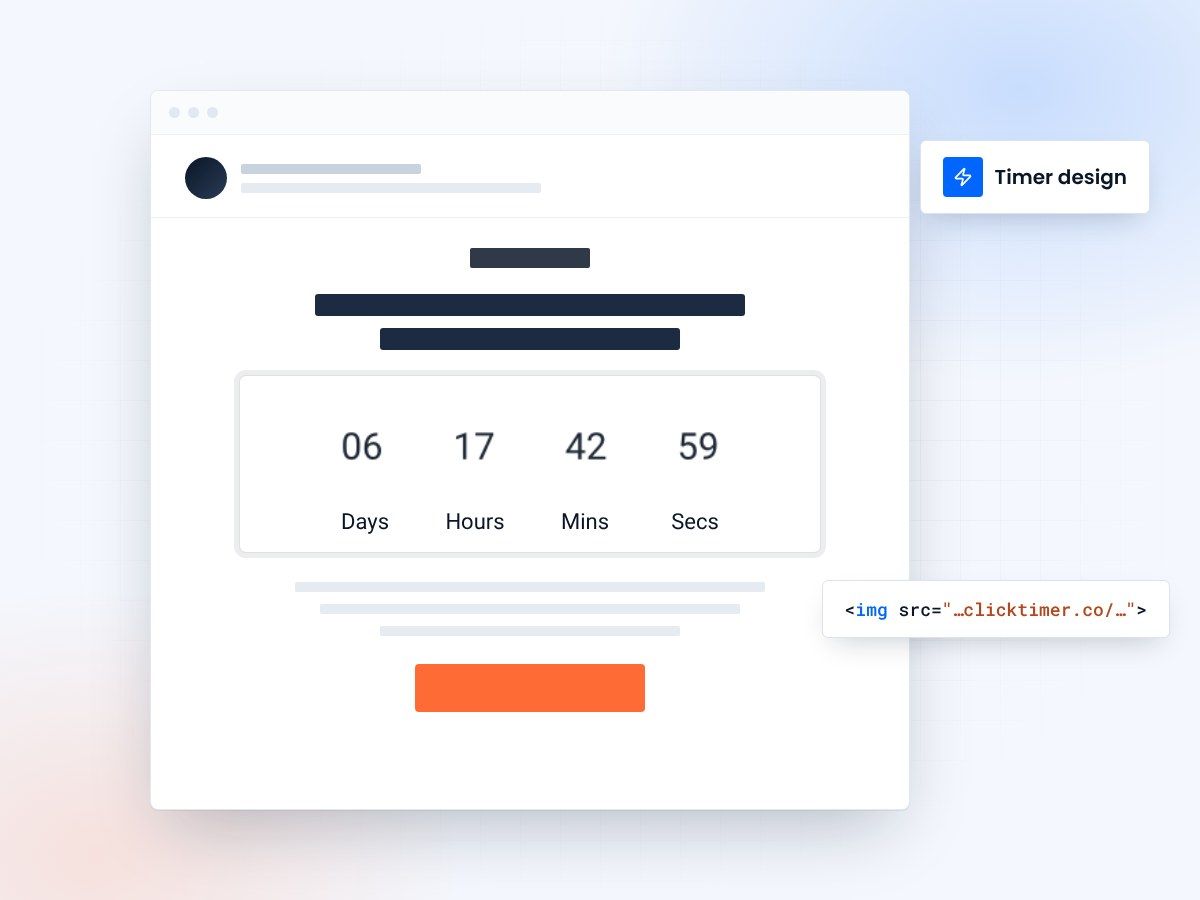
- Design that matches your brand
- Readable on every device
- Works in any email platform
- No watermark, even on the free plan
Design comes first
Countdown timers are visual elements first, functional elements second. If your timer is visually ineffective, it won't create the psychological impact needed to drive conversions.
Conversely, a beautifully designed timer that doesn't render correctly in certain email clients is worse than useless—it damages your email's professional appearance.
Key insight
- Countdown timers increase email engagement by creating urgency
- Visual timers improve click-through rates and conversions
- Time-sensitive messaging drives immediate action
The design challenge
The design challenge is creating timers that are: visually striking and attention-grabbing, appropriately sized for email contexts, readable on all devices (desktop, tablet, mobile), rendering correctly across email clients (Gmail, Outlook, Apple Mail, Yahoo, etc.), and consistent with your brand identity.
Sizing your timer
Email timers typically range from 100 to 300 pixels wide. The ideal size depends on your email width and design context. Most emails are designed for 600px width (standard for optimal display), so a 200-250px wide timer fits well without dominating the email.
For mobile emails (typically 300-400px width), scale proportionally. A 150px timer displays well on mobile without overwhelming the narrow width.
Impact metrics
| Metric | Impact | Result |
|---|---|---|
| Email open rates | Countdown timers in subject lines | ↑ 25-40% |
| Click-through rates | Visual timer elements in content | ↑ 18-35% |
| Conversion rates | Urgency-driven messaging | ↑ 12-30% |
| Customer action speed | Limited-time offers | 3x faster |
Create your email countdown
Pick your fonts and colors, set the size, copy the code. 10,000 free impressions a month, no credit card.
Already have an account?
Send Test Email
Enter your email to receive a preview of how this countdown looks in email campaigns.
Do's and don'ts
Do
- Use realistic, achievable deadlines
- Make timers visually prominent
- Test countdown copy variations
- Update timers in follow-up emails
Don't
- Use fake countdown timers
- Overuse urgency messaging
- Hide expiration dates
- Forget to honor deadlines
Frequently asked questions
How do countdown timers affect email deliverability?
Countdown timers don't directly impact deliverability. However, ensure your timer code is clean HTML/CSS and avoid heavy JavaScript that could trigger spam filters. Test emails with major providers before sending.
Should I use the same deadline for all recipients?
Segmentation is recommended. Send time-zone adjusted emails with recipient-specific deadlines for maximum relevance. This prevents last-minute send volume spikes.
What's the optimal countdown duration?
24-72 hours is typically ideal for urgency without creating undue pressure. Test different durations with your audience to find the sweet spot.
How do I ensure timer accuracy across clients?
Use server-side rendering or dynamic content blocks that calculate time differences server-side. This ensures consistency across all email clients, from Gmail to Outlook.
Try ClickTimer free
Create your first countdown timer in about a minute and start driving urgency-based conversions today.