Ecommerce Email Countdown Timers
Drive more sales from every email. The complete guide to using countdown timers for ecommerce campaigns.
Create Your Timer — Free 10,000 free impressions a month · No watermark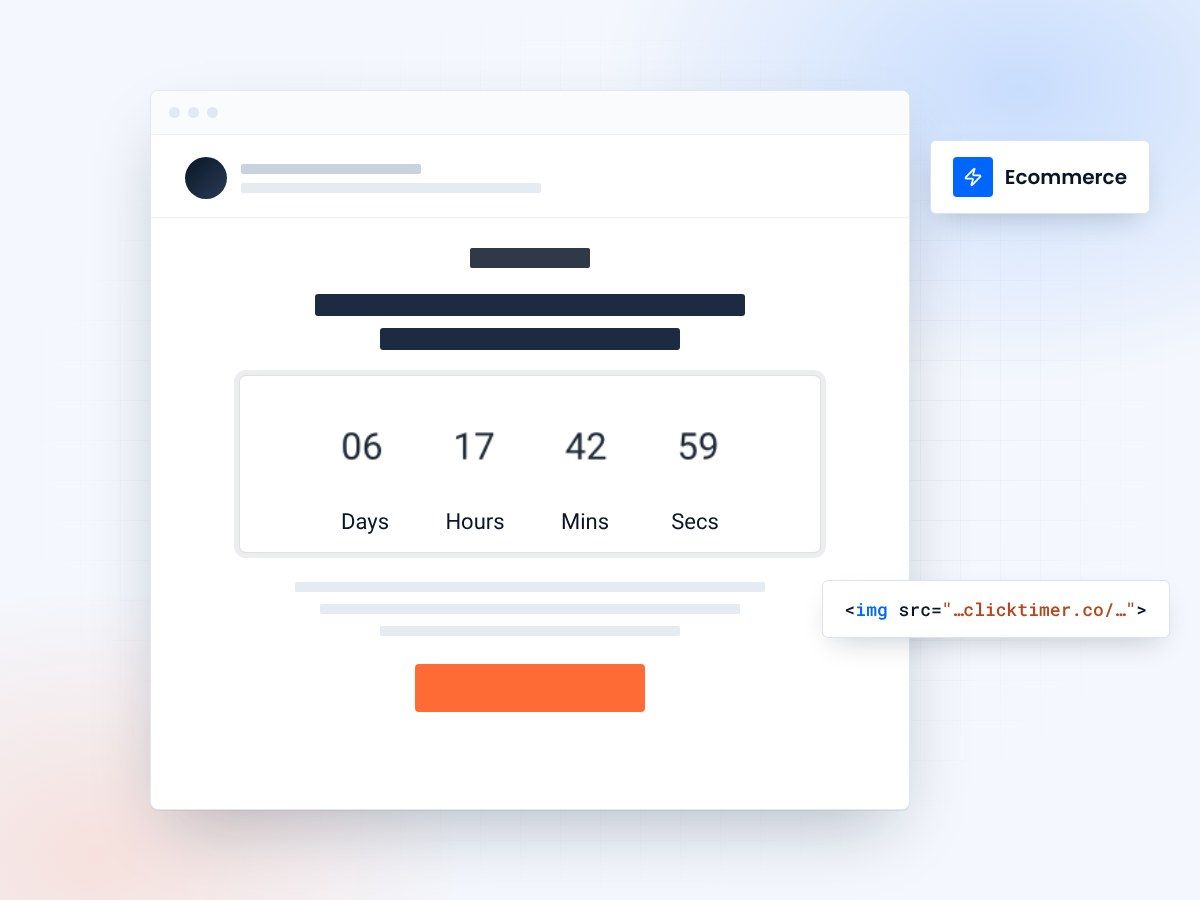
- Works with every ESP
- No API keys, no developer time
- 10,000 free impressions a month
- No watermark, even on the free plan
Why ecommerce needs countdown timers
Ecommerce lives and dies by conversion rates. A 1% increase in email click-through rate can translate to thousands in additional monthly revenue. In a world where the average ecommerce email open rate is around 15-20% and click-through rates hover at 2-3%, any tool that meaningfully lifts those numbers deserves attention.
Countdown timers are one of the simplest, most effective tools available to ecommerce marketers. They create genuine urgency that pushes hesitant shoppers to act now instead of "maybe later" — which, in ecommerce, usually means never. Studies consistently show that emails with countdown timers see 10-30% higher click-through rates compared to identical emails without them.
The best part? Unlike complex personalization or AI-driven product recommendations, countdown timers require zero technical setup. You configure a timer, copy the HTML code, paste it into an HTML block in your email template, and you're done. It works with every ESP and every email client.
7 high-impact ecommerce use cases
Seven campaigns where a deadline is real and a timer pays off.
Flash sales & limited-time offers
The classic use case. "40% off everything — ends in..." with a timer showing hours and minutes. This works because the discount is real, the deadline is real, and the visual countdown eliminates any doubt about the urgency. Flash sales with timers are the bread and butter of ecommerce email marketing.
Best practices: Keep flash sales to 4-24 hours. Show the discount percentage prominently alongside the timer. Place the CTA directly below the timer. Use urgency colors (red, orange) for the timer design.
Expected impact: +15-30% click-through rate vs. no timer
Abandoned cart recovery
Add a timer to your abandoned cart emails: "Your cart is reserved for the next 2 hours." This creates fear of losing the specific items they chose — much more effective than a generic "You forgot something" email. The timer transforms a passive reminder into an active deadline.
Best practices: Use the timer in email 2 or 3 of your cart recovery sequence (not email 1). Show product images alongside the timer. Consider adding a small discount in the final email with the shortest countdown.
Expected impact: +50-100% cart recovery rate over emails without timers
Product launch countdown
"New collection drops in..." Build anticipation with a multi-day countdown. Send a sequence: 7 days out, 1 day out, and "Launching NOW." The timer ties all three emails together visually and creates a sense of event around your launch.
Best practices: Start the countdown 7-14 days before launch. Tease features or products in each email without revealing everything. The launch email should have a short timer (hours, not days) for maximum urgency.
Expected impact: 2-3x launch day traffic vs. single announcement
Free shipping threshold
"Free shipping on all orders over $50 — ends tonight." Pair the timer with a free shipping offer to increase average order value. Shoppers will add more to their cart to hit the threshold before time runs out. This is especially effective for stores where shipping costs are a common checkout friction point.
Best practices: Clearly show the threshold amount alongside the timer. Include product recommendations for items that would push them over the threshold. Time these around paydays or weekends when people are more willing to shop.
Expected impact: +12-18% average order value
Seasonal & holiday campaigns
Valentine's Day, Mother's Day, Back to School, Black Friday, Christmas — every season has a natural deadline. "Order by Dec 18 for guaranteed Christmas delivery" with a countdown timer is practically unbeatable. The urgency is real (shipping deadlines actually exist), which makes the timer feel helpful rather than manipulative.
Best practices: Focus on shipping cutoff dates, not just sale end dates. "Order by X for delivery by Y" is more actionable than "Sale ends Sunday."
Expected impact: +20-35% seasonal email revenue
VIP & loyalty member exclusives
"VIP Early Access — 48 hours before everyone else." Give your loyalty members a head start on sales with a timer showing when public access begins. This rewards loyal customers and makes the exclusivity feel tangible.
Best practices: Frame the timer as "exclusive window closing" not "sale ending." The urgency is about losing VIP advantage, not about the deal going away entirely.
Expected impact: +25% conversion rate for VIP segments
Restock & back-in-stock alerts
"Your wishlist item is back — but selling fast. Reserved for 24 hours." Pair a back-in-stock notification with a timer to prevent the subscriber from waiting and losing the item again. Especially effective for high-demand or limited-quantity products.
Best practices: Use shorter timers (4-12 hours) for genuinely limited-stock items. Show the product image prominently. Include the price and a direct "Buy Now" CTA.
Expected impact: +30-40% conversion rate on back-in-stock emails
Setup guide: 3 minutes to your first timer
- Configure your timerGo to ClickTimer's configurator. Set your end date/time, choose your brand colors and font, adjust the size. The live preview shows exactly what it will look like.
- Copy the HTML codeClick Get embed code, then Copy code.
- Paste into your emailIn your ESP (Klaviyo, Mailchimp, Omnisend, etc.), add an HTML block and paste the code.
- Send a testAlways preview the email on desktop and mobile before sending to your list. Check that the timer displays correctly and the colors match your template.
Create your ecommerce countdown
Set the end date, match your brand, copy the HTML code. 10,000 free impressions a month, no credit card.
Already have an account?
Send Test Email
Enter your email to receive a preview of how this countdown looks in email campaigns.
Pricing reality check
At €4.99/month for 70,000 impressions, ClickTimer is the most cost-effective timer on the market. Most ecommerce brands won't even need the paid plan — the free tier (10,000 impressions, no watermark) is enough to test and validate the impact on your campaigns.
To put the ROI in perspective: if you send 50,000 emails per month and the timer increases your click-through rate by just 15%, that's thousands of additional store visits per month. Even at a modest 2% on-site conversion rate, the incremental revenue far outweighs the cost of the timer tool.
Compare this to other ecommerce email tools — advanced segmentation software, AI product recommendations, dynamic content platforms — which cost $200-500+/month. A countdown timer delivers a comparable conversion lift for a fraction of the price.
Which email platforms work with countdown timers?
The short answer: all of them. Since countdown timers are a standard HTML snippet, they work with every email platform. Here are the most popular ecommerce ESPs and how to add the timer:
| Platform | How to add the timer |
|---|---|
| Klaviyo | HTML block |
| Mailchimp | Code block |
| Omnisend | HTML block |
| HubSpot | Rich text module, Advanced → Source code |
| ActiveCampaign | HTML block |
| Brevo (Sendinblue) | HTML block |
| Drip | HTML block |
| Campaign Monitor | HTML block |
| Shopify Email | Custom Liquid section |
Frequently asked questions
How do countdown timers affect ecommerce email conversion rates?
Ecommerce emails with countdown timers typically see 10-30% higher click-through rates and 5-15% higher conversion rates compared to the same emails without timers. The exact lift depends on your audience, offer quality, and timer placement.
Can I use countdown timers in Shopify emails?
Yes. Whether you use Shopify Email, Klaviyo, Mailchimp, or any other ESP integrated with Shopify, countdown timers work via a simple HTML code. No Shopify app installation needed.
What's the best countdown timer tool for ecommerce?
ClickTimer offers the best value for ecommerce brands: free plan with no watermark, 900+ fonts for brand matching, transparent background support, and the lowest per-impression pricing in the market (€4.99/mo for 70K impressions).
How often should ecommerce brands use countdown timers?
2-4 timer-driven campaigns per month is the sweet spot. Use them for flash sales, product launches, seasonal deadlines, and cart recovery. Don't put a timer in every email — urgency fatigue reduces effectiveness over time.
Do countdown timers work on mobile email?
Yes. GIF-based timers display correctly on all mobile email clients (Gmail app, Apple Mail, Samsung Mail, etc.). Set the timer image to 100% width for responsive display on smaller screens.
Start driving more ecommerce sales
Free countdown timers for your ecommerce emails. No watermark, 900+ fonts, ready in 30 seconds.