ClickTimer Email Countdown Features
Design branded countdown timers with 900+ fonts and full customization
Create Your Timer — Free 10,000 free impressions a month · No watermark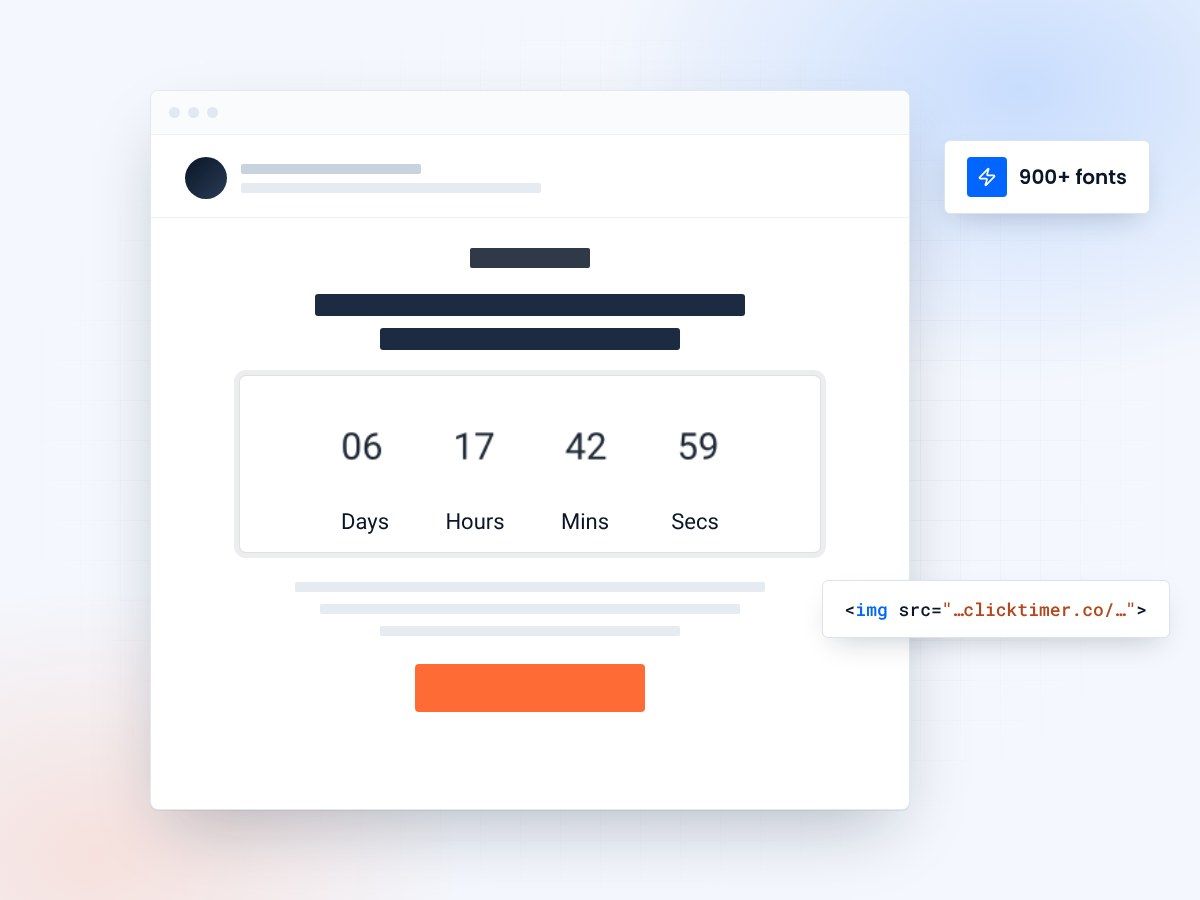
- 900+ Google Fonts
- Custom colors for every element
- Transparent backgrounds
- 10,000 free impressions a month
Branded countdown timers without coding
ClickTimer is a specialized email countdown timer SaaS platform designed to help marketers create branded countdown timers without coding. The platform solves a critical problem: standard email clients don't support animated elements well, and building custom countdown timers requires developer resources.
ClickTimer abstracts this complexity, allowing marketers to design, configure, and deploy countdown timers in minutes rather than weeks. The platform is purpose-built for email marketing, integrating seamlessly with major email service providers (ESP) like Klaviyo, ConvertKit, MailerLite, ActiveCampaign, and others. Whether you're running a restock email, discount countdown, or contest deadline campaign, ClickTimer provides the tools to make your deadline visually compelling and impactful.
- Countdown timers increase email engagement by creating urgency
- Visual timers improve click-through rates and conversions
- Time-sensitive messaging drives immediate action
Match your brand's fonts
Typography is a critical brand element, and countdown timers are prominent visual elements in your email. ClickTimer supports 900+ Google Fonts, giving you complete control over how your countdown displays. You can match your countdown timer to your brand's typography system.
If your brand uses "Montserrat" for headlines, you can set your countdown timer to use Montserrat as well, creating visual cohesion between your email design and the countdown element. The 900+ font library includes serif fonts (traditional, professional), sans-serif fonts (modern, clean), display fonts (bold, distinctive), handwriting fonts (personal, creative), and monospace fonts (technical, minimal). This breadth ensures you can find fonts that match virtually any brand aesthetic.
You can also combine different fonts within a countdown timer—one font for the numbers, another for labels. For example, a luxury brand might use an elegant serif font for numbers and a minimal sans-serif for "hours," "minutes," "seconds." This typographic sophistication elevates your countdown timer from generic-looking to brand-aligned.
Font families in the library
- Serif — traditional, professional
- Sans-serif — modern, clean
- Display — bold, distinctive
- Handwriting — personal, creative
- Monospace — technical, minimal
Custom colors for every element
Beyond fonts, ClickTimer supports fully custom colors for every countdown element. You can set:
- Number colorthe actual countdown digits
- Label colortext like "hours," "minutes," "seconds"
- Background colorthe area behind the countdown
- Border coloroutline around the countdown timer
- Text colorfor accompanying labels around the timer
This granular color control means you can create countdown timers that precisely match your email color scheme. A brand with blue and gold colors can create a countdown timer with gold numbers on a blue background, matching their email header and footer. You can also use gradient colors—a gradient from blue to purple, or gold fading to orange.
The color customization extends to hover states: when a user hovers over a linked countdown timer (for interactive versions), you can set the hover color separately. This level of customization means countdown timers feel like native elements of your email design rather than external embeds.
Transparent background support
One of ClickTimer's standout features is transparent background support. Rather than placing your countdown timer in a rectangular box with opaque background, you can set the background to transparent, allowing your email's background (solid color, pattern, or image) to show through. This creates a more elegant, integrated visual that feels less "widget-like" and more part of your email design.
The technical implementation of transparent backgrounds in emails is challenging because many email clients have compatibility issues. ClickTimer handles these compatibility issues automatically, ensuring your transparent countdown timer displays correctly in Gmail, Outlook, Apple Mail, and other major clients. This frees you from worrying about technical details and lets you focus on design.
Transparent backgrounds work particularly well for:
- Countdown timers placed over hero images in emails
- Minimalist email designs where you want clean lines without boxes
- Branded email templates where the countdown timer needs to blend with complex backgrounds
Impact metrics
| Metric | Impact | Result |
|---|---|---|
| Email Open Rates | Countdown timers in subject lines | ↑ 25-40% |
| Click-Through Rates | Visual timer elements in content | ↑ 18-35% |
| Conversion Rates | Urgency-driven messaging | ↑ 12-30% |
| Customer Action Speed | Limited-time offers | 3x Faster |
Create your branded countdown
Pick your font and colours, set the end date, copy the image. 10,000 free impressions a month, no credit card.
Already have an account?
Send Test Email
Enter your email to receive a preview of how this countdown looks in email campaigns.
Best practices
Do
- Use realistic, achievable deadlines
- Make timers visually prominent
- Test countdown copy variations
- Update timers in follow-up emails
Don’t
- Use fake countdown timers
- Overuse urgency messaging
- Hide expiration dates
- Forget to honor deadlines
Frequently asked questions
How do countdown timers affect email deliverability?
Countdown timers don't directly impact deliverability. However, ensure your timer code is clean HTML/CSS and avoid heavy JavaScript that could trigger spam filters. Test emails with major providers before sending.
Should I use the same deadline for all recipients?
Segmentation is recommended. Send time-zone adjusted emails with recipient-specific deadlines for maximum relevance. This prevents last-minute send volume spikes.
What's the optimal countdown duration?
24-72 hours is typically ideal for urgency without creating undue pressure. Test different durations with your audience to find the sweet spot.
How do I ensure timer accuracy across clients?
Use server-side rendering or dynamic content blocks that calculate time differences server-side. This ensures consistency across all email clients, from Gmail to Outlook.
Try ClickTimer free
Create your first countdown timer in 30 seconds and start driving urgency-based conversions today.