How Email Countdown Timers Actually Work
They're not JavaScript. They're not HTML. They're server-generated GIFs — and that's exactly why they work everywhere.
Create Your Timer — Free 10,000 free impressions a month · No watermark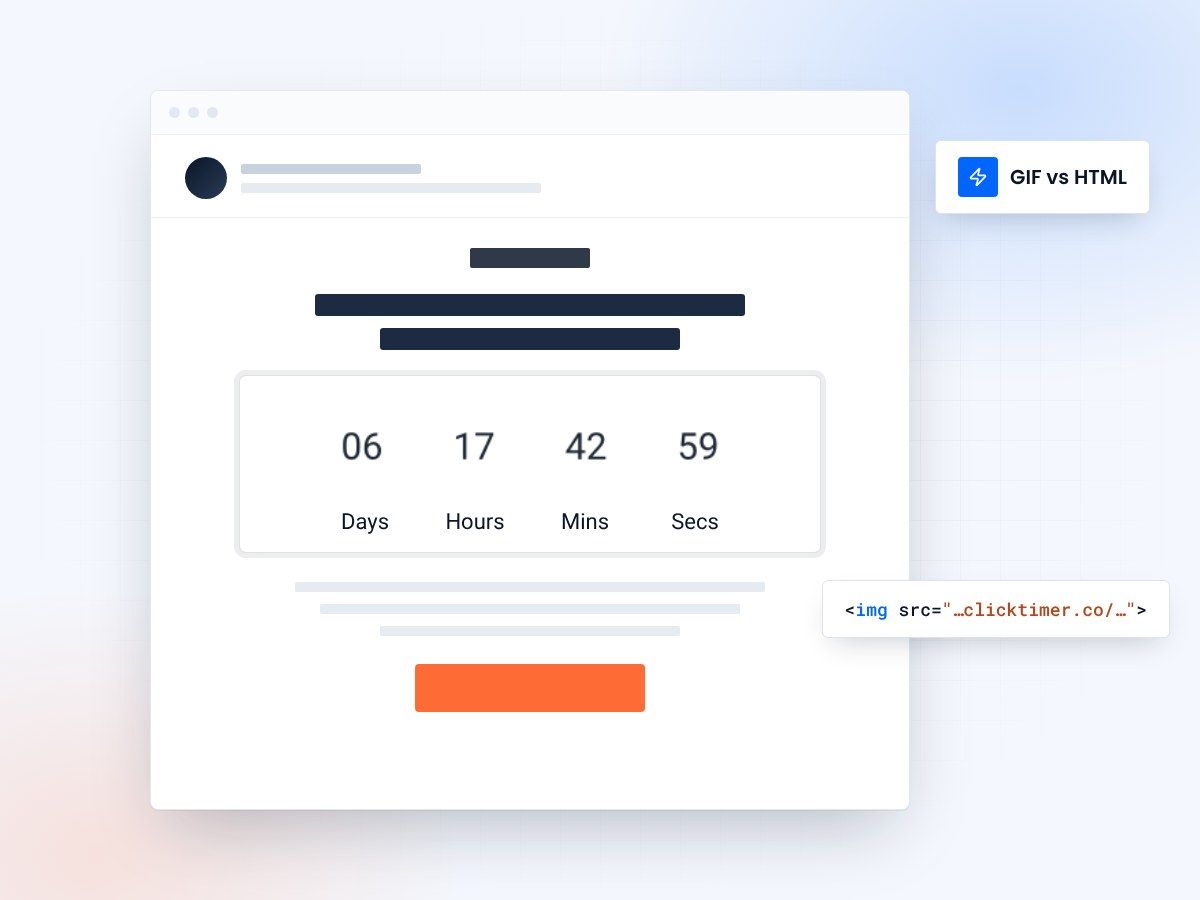
- A fresh GIF on every open
- Works in any email platform
- No JavaScript, just an image
- 10,000 free impressions a month
The short answer: they're server-generated GIFs
Email countdown timers aren't powered by JavaScript. They aren't HTML5 animations. They're animated GIF images generated on a server at the exact moment someone opens your email. Every single time a subscriber opens the message, the email client requests a fresh image from the timer server, which calculates the remaining time and renders a new GIF on the fly.
This is the key insight that confuses most marketers: the timer isn't embedded in the email. The email contains an <img> tag pointing to a URL. That URL hits a server that generates and returns a GIF showing the current countdown. It's dynamic content delivered through the most universally supported email element — an image.
This approach works because every email client on earth supports GIF images — Gmail, Outlook, Apple Mail, Yahoo, Samsung Mail, and every other client. No JavaScript needed, no CSS animations, no compatibility issues. Just a standard image tag that happens to point to a smart server.
How server-side GIF timers work (step by step)
- You configure your timerUsing a tool like ClickTimer, you set your end date/time, choose colors, pick a font (900+ options), and customize the layout. The configurator generates a unique URL containing all your settings as parameters.
- You paste the embed code in your emailYou copy the HTML code ClickTimer generates (a standard
<img src="...">tag) and paste it into an HTML block in your email template. This works in every ESP: Mailchimp, Klaviyo, HubSpot, ActiveCampaign, Brevo — all of them. It's just an image tag. - Subscriber opens the emailWhen the subscriber opens the email, their email client loads all images — including the timer URL. This triggers an HTTP request to the timer server.
- Server calculates remaining timeThe timer server reads the end date from the URL parameters, calculates the difference between now and the deadline, and determines the days, hours, minutes, and seconds remaining.
- Server renders an animated GIFUsing your design settings (colors, font, size), the server generates an animated GIF showing the countdown. The animation typically cycles through a few seconds of countdown to create the ticking effect. This GIF is returned as the HTTP response.
- Email client displays the timerThe subscriber sees a live countdown timer in their email. If they close and reopen the email an hour later, a new request goes to the server and a fresh GIF is generated with the updated time remaining.
GIF timers vs HTML timers: the key differences
You'll sometimes hear about "HTML countdown timers" for email. These use CSS animations or even JavaScript to render a countdown directly in the email. While technically impressive, they have serious compatibility issues that make them impractical for most email campaigns.
| Feature | GIF Timers (ClickTimer) | HTML/CSS Timers |
|---|---|---|
| Gmail support | Full support | Stripped by Gmail |
| Outlook support | Shows first frame | Broken layout |
| Apple Mail | Full animation | Partial support |
| Yahoo Mail | Full support | Not supported |
| Real-time accuracy | Updated on each open | Shows time since send |
| Setup complexity | Paste 1 HTML code | Write custom HTML/CSS |
| Email client coverage | ~98% of all clients | ~40% of clients |
Why GIF timers win for email marketing
Universal compatibility
GIF is the most universally supported image format in email. Every email client that can display images (which is all of them) can display a GIF timer. No fallbacks needed, no conditional rendering, no broken layouts.
Always accurate
Because the GIF is generated fresh on every open, it always shows the correct remaining time. Even if someone opens the email 3 days after you sent it, the timer will show the actual time left — not the time since the email was sent.
Zero implementation risk
It's just an image tag. You can't break your email layout with an image tag. There's no JavaScript to be stripped, no CSS that could conflict with your template, no rendering engine differences to debug.
Works with every ESP
Mailchimp, Klaviyo, HubSpot, ActiveCampaign, Brevo, Omnisend, Campaign Monitor — if it can send an email with images, it supports GIF countdown timers. No integrations, no plugins, no API setup.
Create your countdown timer
See the GIF render live as you change it. 10,000 free impressions a month, no credit card.
Already have an account?
Send Test Email
Enter your email to receive a preview of how this countdown looks in email campaigns.
Types of email countdown timers
Fixed-date timers
Count down to a specific date and time (e.g., "Black Friday ends November 30 at midnight"). Every subscriber sees the same deadline. Best for: sales events, product launches, webinars, holidays.
Evergreen timers
Count down from a relative time (e.g., "24 hours from when you open this email"). Each subscriber gets their own personal deadline. Best for: abandoned cart emails, welcome sequences, free trial expirations.
Recurring timers
Reset automatically (e.g., "Weekly flash sale ends every Friday at 6 PM"). Useful for businesses with regular promotions or recurring events.
Common myths about email countdown timers
Myth: "Countdown timers use JavaScript in email"
JavaScript is stripped by virtually every email client for security reasons. Real email timers are server-generated images, not scripts.
Myth: "GIF timers are static — they don't really count down"
The GIF contains a short animation loop (typically 30-60 frames) showing the countdown ticking. And because a new GIF is generated on each email open, the starting point is always accurate.
Myth: "You need technical skills to add a timer to your emails"
With tools like ClickTimer, you configure your timer visually, copy the HTML code, and paste it into an HTML block in your email builder. If you can paste code into an email, you can add a countdown timer.
Myth: "Outlook doesn't support GIF animations"
True, desktop Outlook shows only the first frame of a GIF. But that first frame still shows the correct countdown time. The subscriber sees the deadline — they just don't see the ticking animation. Outlook.com (web) and Outlook mobile do support animation.
Myth: "Timers slow down email loading"
A well-optimized GIF timer is typically 20-50KB — smaller than most product images in your email. The server generation happens in milliseconds. There's no noticeable impact on load time.
What happens when the timer hits zero?
When the countdown expires, the server needs to return something different. With ClickTimer, you can configure an expired state — a static image showing "This offer has ended" or redirecting to an alternative message. This is important for professionalism: you don't want subscribers opening an old email and seeing "00:00:00:00" with a broken call to action.
Frequently asked questions
Do countdown timers work in Gmail?
Yes. GIF-based countdown timers work perfectly in Gmail (both web and mobile). Gmail supports animated GIFs in emails, so the timer displays and animates correctly.
Do countdown timers work in Outlook?
Desktop Outlook shows the first frame of the GIF (a static image with the correct remaining time). Outlook.com (web) and Outlook mobile support full GIF animation.
Can I use countdown timers with Mailchimp?
Yes. Simply paste the timer's HTML code into a Code block in your Mailchimp template. No integration or plugin required.
Are email countdown timers free?
ClickTimer offers a free plan with 10,000 impressions per month and no watermark. Most small businesses can test and validate without spending anything.
How much do email countdown timers cost?
ClickTimer's paid plans start at €4.99/month for 70,000 impressions — roughly €0.07 per 1,000 views. This is significantly cheaper than most competitors.
Do countdown timers increase email conversions?
Yes. Industry data suggests emails with countdown timers see 10-30% higher click-through rates. The exact lift depends on your offer, audience, and how well the timer is integrated into the email design.
Try it yourself, free
See how GIF countdown timers work by creating one right now. No sign-up, no watermark, ready in 30 seconds.