HubSpot Countdown Timers
Maximize HubSpot email performance with countdown timers. Integration guide for all users.
Create Your Timer — Free 10,000 free impressions a month · No watermark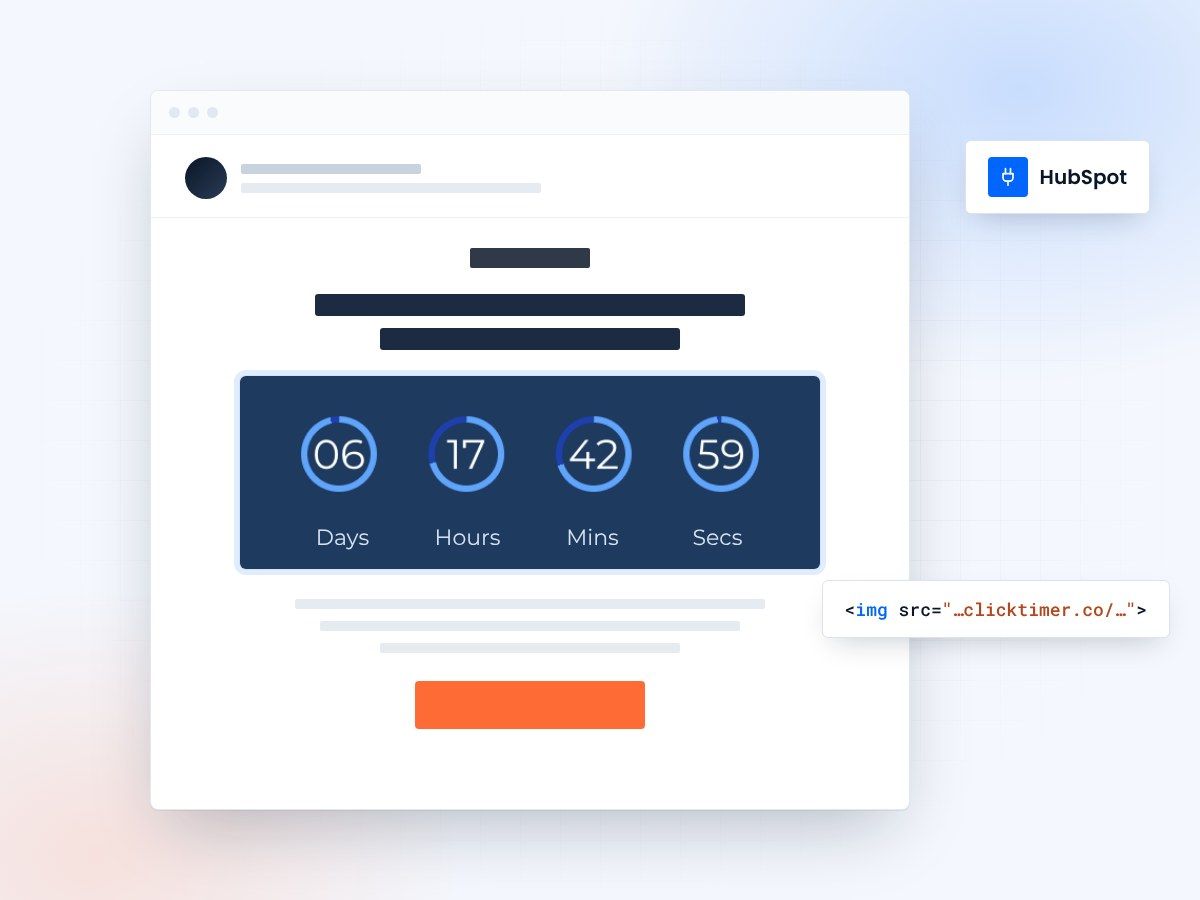
- Works in the HubSpot email designer
- No coding needed
- 10,000 free impressions a month
- No watermark, even on the free plan
Adding countdown timers to HubSpot emails
Countdown timers are one of the most effective ways to boost email engagement and drive immediate action. HubSpot users have multiple strategies to add countdown timers to their email campaigns, each with different levels of complexity and flexibility.
In this guide, we'll walk you through the best methods to implement countdown timers in your HubSpot emails, from the easiest approach to more advanced customization options.
Why countdown timers matter in HubSpot
Countdown timers create a sense of urgency that naturally compels subscribers to act faster. Studies show that emails with countdown timers see up to 45% higher click-through rates compared to standard promotional emails. When your prospects see time running out, they're more likely to open your email immediately and convert.
Key benefits
Countdown timers increase conversion rates, reduce decision fatigue, create authentic urgency without being pushy, and improve email ROI significantly.
Three methods to add countdown timers
HubSpot offers flexibility in how you implement countdown timers. Let's compare the most popular approaches:
| Method | Ease of Use | Customization | Best For |
|---|---|---|---|
| Third-Party Tool Integration | Very Easy | Limited | Quick deployments, no coding needed |
| Custom HubSpot Module | Moderate | High | Branded campaigns, reusable templates |
| HTML Editor with Code | Advanced | Very High | Complex animations, full control |
Third-party tool integration
The easiest approach is using a specialized countdown timer tool like ClickTimer. These services generate countdown timer code that you can embed directly into your HubSpot emails.
Simply create your timer, customize the design, and copy the HTML code into your email template.
Step-by-step
- Generate your countdown timer at ClickTimer.co
- Customize colors, fonts, and messaging
- Copy the HTML embed code
- Paste into HubSpot email designer HTML section
- Preview and test across clients
Create your HubSpot countdown
Set the deadline, customize the design, paste the code into your HubSpot email. 10,000 free impressions a month, no credit card.
Already have an account?
Send Test Email
Enter your email to receive a preview of how this countdown looks in email campaigns.
Custom modules and custom code
Method 2: custom HubSpot module
For teams that want reusable countdown timers branded to their specifications, building a custom HubSpot email module is ideal. This approach requires some development knowledge but gives you maximum control and consistency across campaigns.
You can create a module that accepts parameters like countdown duration, display format, and CTA button styling. Once built, your marketing team can reuse it across all campaigns without touching code.
Method 3: HTML editor with custom code
Advanced users can write custom HTML and JavaScript directly in HubSpot's email HTML editor. This gives you complete control over appearance and behavior, but requires solid coding knowledge and thorough email client testing.
Best practices for HubSpot countdown timers
To maximize effectiveness, follow these proven strategies:
Timing and duration
Set countdown periods between 24-48 hours for flash sales and 7-14 days for webinar promotions. Match the timer to your actual deadline.
Design and placement
Place timers above the fold and make them visually prominent. Use contrasting colors like red or orange to draw attention and convey urgency.
Testing
Test countdown timers across major email clients (Gmail, Outlook, Apple Mail) before sending. Many clients have different JavaScript support levels.
Mobile optimization
Ensure your timer is responsive and readable on mobile devices. Most opens happen on phones, so mobile performance is critical.
Common questions about HubSpot timers
Will countdown timers work in all email clients?
Most email clients support countdown timers if you use standard HTML and CSS. However, animated JavaScript timers may not work in older clients. Use a static fallback image or alternative countdown method for maximum compatibility.
Can I personalize countdown timers with HubSpot merge fields?
Yes. You can use HubSpot merge fields to personalize the countdown message. For example, show different timers based on contact properties like customer segment or purchase history.
What's the best timer duration for different campaign types?
Flash sales work best with 24-48 hour countdowns. Webinars need 7-14 days to build momentum. Time-sensitive deals should use the actual deadline. Test different durations to find what converts best for your audience.
How do I measure the impact of countdown timers?
Track click-through rates, conversion rates, and time-to-conversion in HubSpot. A/B test with and without timers to isolate their impact. Most teams see 30-45% improvements in CTR with well-executed countdown timers.
Try ClickTimer free in HubSpot
Create your first countdown timer in 30 seconds and add it to your HubSpot campaigns today.