Klaviyo Countdown Timer Setup
Maximize Klaviyo email performance with countdown timers. Complete setup guide for brands.
Create Your Timer — Free 10,000 free impressions a month · No watermark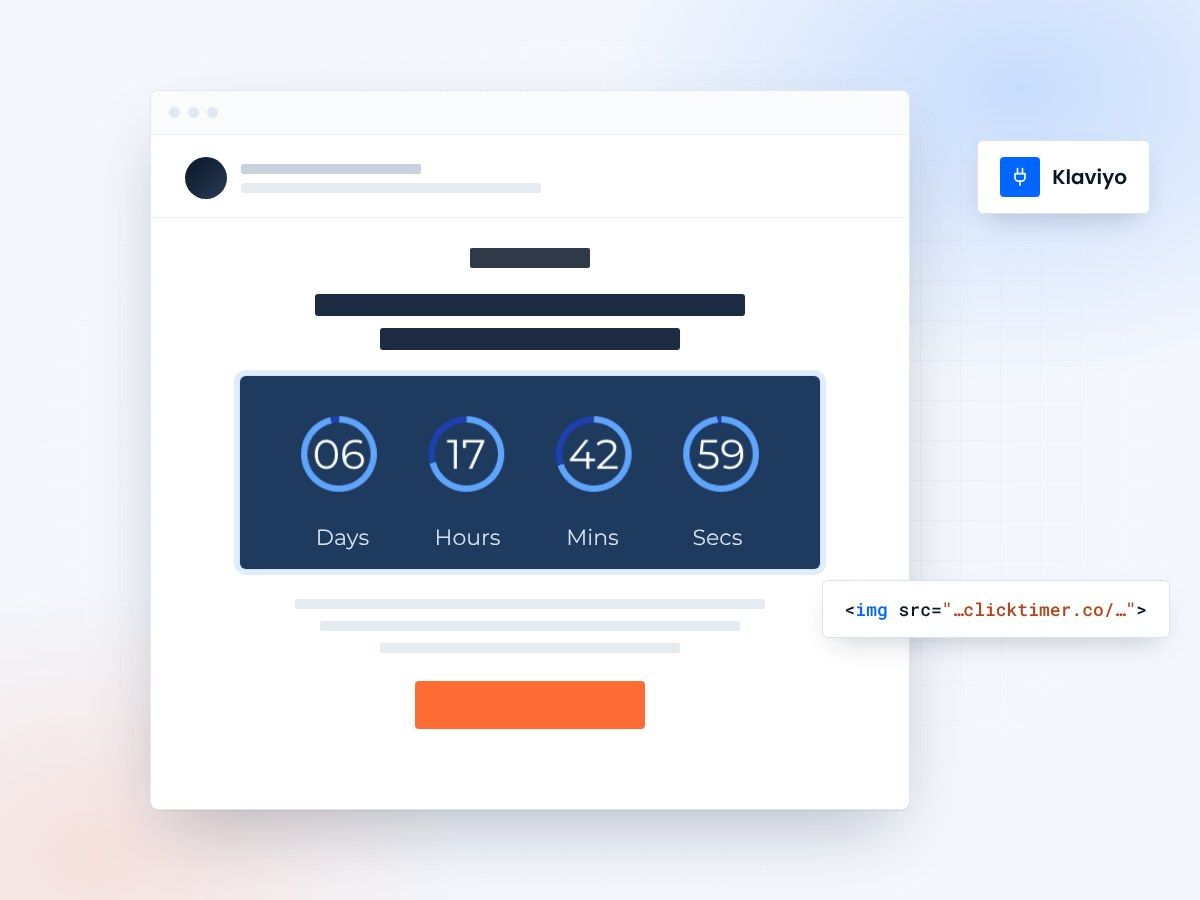
- Works in Klaviyo campaigns and flows
- Basic setup in about 5 minutes
- 10,000 free impressions a month
- No watermark, even on the free plan
Setting up countdown timers in Klaviyo emails
Klaviyo's powerful segmentation and personalization capabilities make it ideal for deploying countdown timers that feel relevant to each subscriber. Advanced Klaviyo users can leverage custom code and integrations to create highly targeted campaigns with dynamic deadline countdowns that adapt to when each recipient opens the email.
Countdown timer options in Klaviyo
| Option | Implementation | Real-Time Updates | Recommended For |
|---|---|---|---|
| Third-Party Timer Apps | Easy embed via dashboard | Yes | Most users—straightforward setup |
| Animated GIF Timers | Simple image upload | No | Universal compatibility |
| Custom Liquid Code | Advanced templating | Yes | Developers—fully customized |
| Dynamic Countdown Integration | API-based integration | Yes | Enterprise—personalized deadlines |
Adding a timer to Klaviyo
Basic integration takes about 5 minutes, from generating the timer to sending.
Basic integration (5 minutes)
- Generate a countdown timer at clicktimer.co
- Click Get embed code, then Copy code
- Create a new email campaign in Klaviyo
- In the email editor, add an HTML block
- Paste the code and position it in the email
- Test, preview, and send to your audience
Detailed integration steps
- Create a new campaignLog into Klaviyo and navigate to Campaigns. Click "Create Campaign" and select your campaign type (email broadcast, SMS, or flow). Name your campaign and select your audience segment based on customer behavior or attributes.
- Select or create an email templateChoose from Klaviyo's template library or design from scratch using the drag-and-drop editor. Klaviyo's flexible blocks make it easy to position timers prominently. Consider using a template with clear sections for your message, timer, and CTA.
- Generate your countdown timerVisit clicktimer.co and configure a countdown timer matching your campaign's deadline. For Klaviyo campaigns, 24-48 hour windows typically perform best. Customize colors and design to match your brand. Copy the resulting HTML code.
- Insert the timer into your emailBack in Klaviyo's email editor, add an HTML block where you want the timer to appear. Paste your timer's HTML code into it.
- Add surrounding copy and CTAsWrite compelling copy above the timer explaining the offer and deadline. Below the timer, include a prominent CTA button directing subscribers to your offer. Use urgency-focused language that reinforces why the countdown matters.
- Leverage Klaviyo personalizationUse Klaviyo's merge tags to personalize content around your timer. Reference customer first name, purchase history, or browse behavior to make the offer more relevant and increase urgency perception.
- Test across devices and clientsSend test emails to your personal accounts across Gmail, Outlook, Apple Mail, and mobile clients. Verify the timer displays correctly, the CTA button links properly, and the overall email appearance is professional and on-brand.
- Configure tracking and deploySet up click tracking and conversion tracking in Klaviyo. Choose your send time and frequency settings. Review your audience segment to ensure accuracy. Schedule the campaign or set it to send immediately, then monitor performance in real-time.
Create your Klaviyo countdown
Set the deadline, match your brand, paste the code into an HTML block. 10,000 free impressions a month, no credit card.
Already have an account?
Send Test Email
Enter your email to receive a preview of how this countdown looks in email campaigns.
Using Klaviyo flows with countdown timers
Abandoned cart recovery
Trigger an automated email when customers leave items in their cart. Include a countdown showing when their cart expires or when an exclusive discount ends. This creates double urgency.
Browse abandonment
For customers who browsed but didn't purchase, send an automated reminder with an exclusive time-limited discount. The countdown timer reinforces that the offer won't last forever.
Post-purchase upsells
Automatically trigger upsell emails 3-5 days after purchase. Include countdown timers for complementary product bundles or exclusive add-on discounts available only to recent customers.
VIP exclusive access
Create flows giving loyal customers exclusive early access to new products or sales. Use countdown timers to show how long the VIP window remains, encouraging them to shop before general release.
Optimization tips for Klaviyo countdown timers
- Segment your audience by purchase history for relevant offers
- Use Klaviyo's analytics to measure timer campaign performance
- A/B test timer placement (above vs. below fold)
- Combine timers with personalized product recommendations
- Test different countdown durations (24 vs. 48 hours)
- Monitor unsubscribe rates to ensure timers don't feel too pushy
- Use conversion metrics, not just opens, to measure success
Frequently asked questions
Can I use countdown timers in Klaviyo flows?
Yes, absolutely. Timers work excellently in automated flows triggered by customer behavior. Use them in abandoned cart, post-purchase, win-back, and VIP access flows to maximize conversion impact across your automation sequences.
Do real-time AMP timers work in Klaviyo?
Klaviyo supports AMP for Email in Gmail accounts. However, for maximum reach across all email clients, animated GIFs are more reliable. AMP timers provide real-time countdowns in Gmail while GIFs ensure universal display with static countdown images.
How do I track countdown timer performance in Klaviyo?
Klaviyo provides detailed analytics for opens, clicks, and revenue per email. Create custom metrics comparing conversion rates for campaigns with timers versus without. Use UTM parameters in your CTA links to track traffic and revenue in Google Analytics.
Can I use countdown timers for SMS campaigns in Klaviyo?
Countdown timers are image-based, so they work in email but not SMS. For SMS campaigns, communicate urgency through copy like "Offer ends in 24 hours" instead. Consider combining SMS and email for maximum impact—timers in email, text urgency in SMS.
Try ClickTimer free in Klaviyo
Create your first countdown timer in 30 seconds.