Add Countdown Timers to Mailchimp
Boost Mailchimp email conversions with countdown timers. Complete tutorial for beginners and advanced users.
Create Your Timer — Free 10,000 free impressions a month · No watermark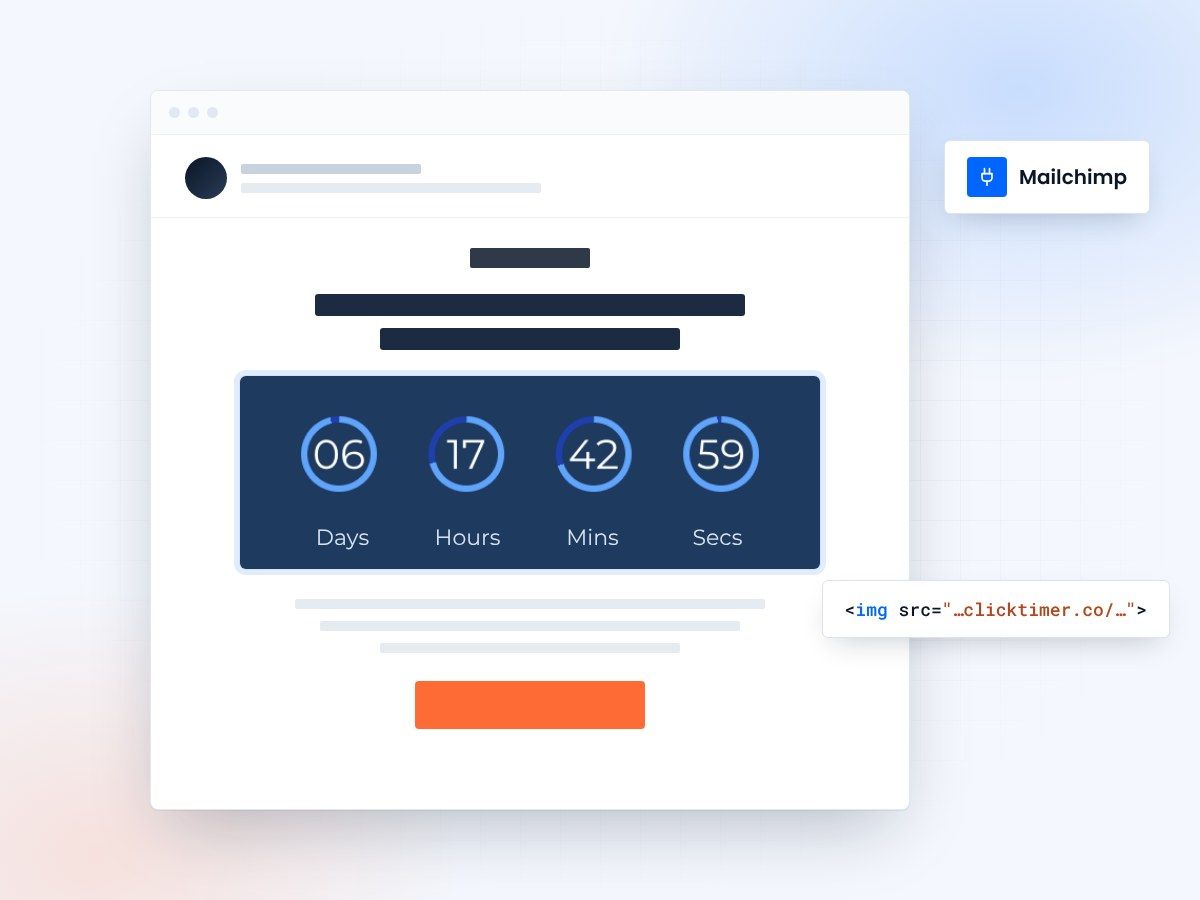
- Works in any Mailchimp campaign
- Paste into a Code block
- 10,000 free impressions a month
- No watermark, even on the free plan
Adding countdown timers to Mailchimp campaigns
Mailchimp's flexible email builder and integration ecosystem make it easy to add countdown timers to your campaigns. Whether you're running a seasonal sale, promoting a limited-time offer, or driving event attendance, countdown timers in Mailchimp emails create visual urgency that boosts engagement and conversions.
Why Mailchimp + countdown timers work together
Mailchimp's merge tags and automation features allow you to personalize countdown timers for each recipient, ensuring that the deadline is relevant to when they received the email. This personalization significantly increases campaign effectiveness.
Methods to integrate countdown timers in Mailchimp
| Integration method | Complexity | Real-time updates | Best for |
|---|---|---|---|
| ClickTimer Integration | Easy | Yes | Most users—automated setup |
| Animated GIF Images | Very easy | No | Simple timers, universal support |
| Custom HTML Code | Medium | Yes | Advanced users with developer skills |
| Zapier + Third-Party Tools | Medium | Yes | Workflow automation with custom timers |
Quick start: adding a countdown timer to Mailchimp
5-minute setup process
The short version
- Create a ClickTimer countdown at clicktimer.co
- Copy your timer's HTML embed code
- Go to Mailchimp and create or edit an email campaign
- Click "Insert" and select "Code Block"
- Paste the timer code and position it in your email
- Test the email preview and send to your list
Detailed step-by-step integration
- Create your campaignLog into Mailchimp, navigate to the Campaigns tab, and click "Create Campaign." Choose your campaign type (regular, automated, or A/B test) and set up basic details like subject line and recipient list.
- Access the email designerClick "Design Email" to enter Mailchimp's drag-and-drop editor. You can start with a template or build from scratch. The flexible layout blocks make it easy to position your countdown timer prominently.
- Generate your countdown timerIn a new tab, visit clicktimer.co. Configure your countdown timer with your desired deadline and design. For Mailchimp campaigns, 24-48 hour windows work best. Copy the resulting HTML code.
- Insert the timerBack in Mailchimp, click the "+" icon in your email to add a new block. Select "Code". Paste your timer code.
- Add supporting contentPosition compelling copy above and below the timer. Use urgency-focused language that reinforces why the deadline matters. Include a clear CTA button near the timer directing subscribers to your offer.
- Preview and testClick "Preview" to see how your email looks on desktop and mobile. Send test emails to yourself across Gmail, Outlook, and Apple Mail to verify the timer displays correctly in all clients.
- Configure tracking and sendReview Mailchimp's tracking settings to enable click and open tracking. Set your send time (consider time zones for maximum impact) and deploy your campaign.
Create your Mailchimp countdown
Set the deadline, match your design, copy the HTML code into Mailchimp. 10,000 free impressions a month, no credit card.
Already have an account?
Send Test Email
Enter your email to receive a preview of how this countdown looks in email campaigns.
Using Mailchimp automation with timers
Automation workflow ideas
Mailchimp's automation features combined with countdown timers create powerful subscriber journeys:
- Welcome Series: Send countdown timers for new subscriber exclusive discounts
- Cart Recovery: Trigger emails with countdown timers when items sit in carts
- Win-back Campaigns: Re-engage inactive subscribers with time-limited comeback offers
- Post-Purchase: Follow up with complementary product offers showing limited-time bundles
- Event Promotion: Build event registrations with deadline countdowns in automated sequences
Troubleshooting common issues
Timer not displaying?
Check that you pasted the full HTML code into a Code block and that Mailchimp hasn't stripped any tags. Preview in multiple clients.
Broken images in mobile?
Adjust timer dimensions to be responsive. Mailchimp's responsive image settings help, but some timers may need manual CSS adjustments. Test on actual mobile devices, not just preview mode.
Poor click tracking?
Ensure your CTA button is linked separately from the timer image. Mailchimp tracks button clicks, not timer image clicks. Place an obvious button near your timer with clear link destination.
Outlook display issues?
Some Outlook clients have limited CSS support. Use animated GIFs instead of HTML5 for maximum compatibility. Test in Outlook specifically and consider providing a fallback static image.
Frequently asked questions
Can I use countdown timers in automated email sequences?
Yes, absolutely. Mailchimp's automation platform supports timers in welcome series, cart recovery, event-triggered emails, and more. This is one of the most powerful applications for countdown timers.
Do real-time countdown timers work in Mailchimp?
Real-time AMP for Email timers work in Gmail but have limited support in other email clients. For maximum reach, use GIF-based timers that show a static countdown rather than live updates.
Should I use merge tags with countdown timers?
Merge tags work well for personalizing email content around timers. You can reference recipient name, purchase history, or other data to make the urgency messaging more relevant and personal.
How do I measure countdown timer performance in Mailchimp?
Track opens, clicks, and conversions through Mailchimp's built-in analytics. Compare conversion rates of campaigns with timers versus without timers. Use UTM parameters to track revenue impact in Google Analytics.
Add your first Mailchimp countdown today
Create your first countdown timer in 30 seconds.