Appointment Reminder Countdown Emails
Slash no-show rates with real-time countdown appointment reminders
Create Your Timer — Free 10,000 free impressions a month · No watermark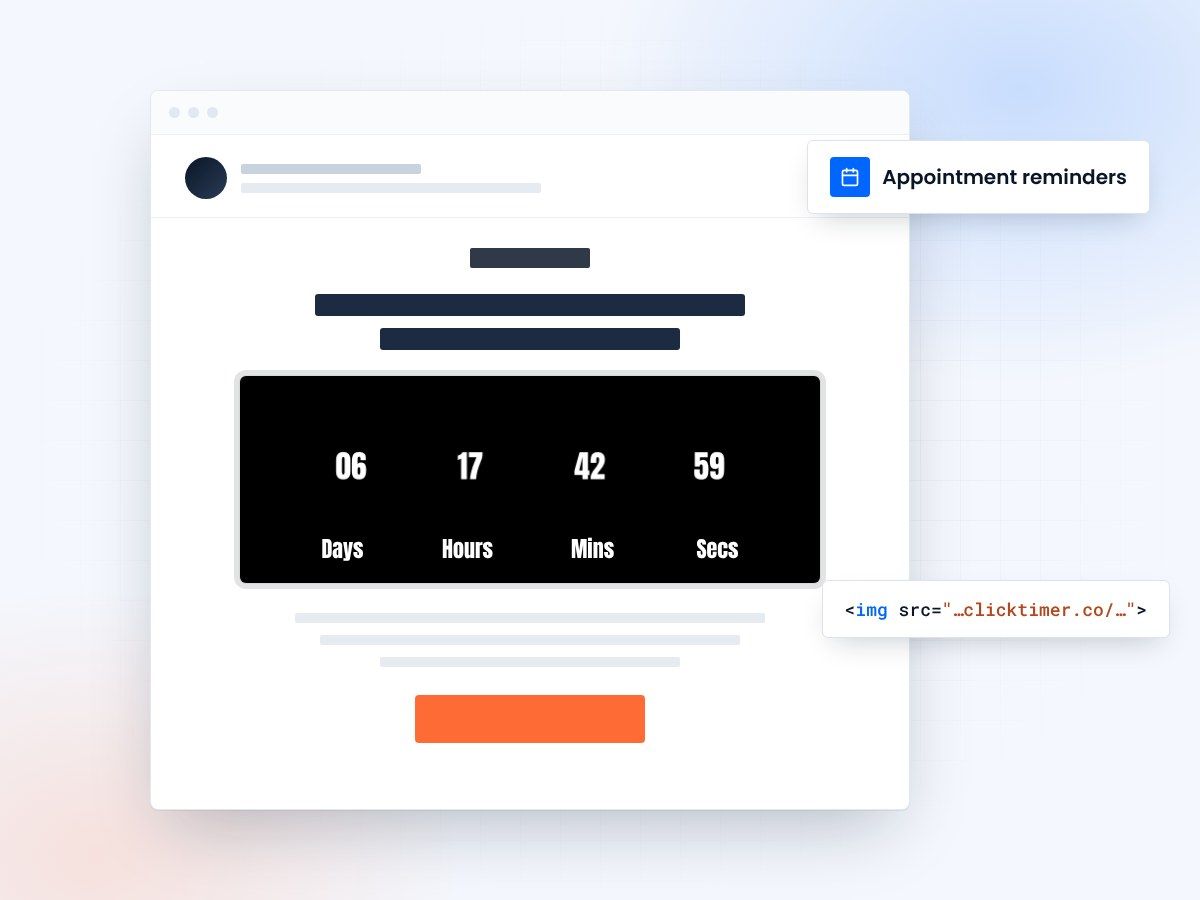
- Counts down to each client's appointment
- Updates every time the email opens
- Works in Gmail, Outlook, Apple Mail
- 10,000 free impressions a month
Why countdown timers matter for appointments
No-shows are one of the most expensive problems in service-based businesses. In healthcare, no-show rates average 23% according to research published in BMC Health Services Research. Salons and spas report 20-30% no-show rates. Even B2B consultations see 15-20% of booked meetings go unattended.
The financial impact is staggering. A dental practice losing 5 appointments per day at $200 average value is bleeding $1,000 daily — over $250,000 per year. A consulting firm missing 3 calls per week at $500 per session loses $78,000 annually. These aren't hypothetical numbers; they're the reality for businesses that rely on standard text-based reminders.
Countdown timer emails change this dynamic completely. Instead of a static "Your appointment is tomorrow at 2 PM" that blends into a crowded inbox, a live countdown showing "23 hours, 14 minutes until your appointment" creates an immediate, visceral awareness that demands attention. The ticking timer makes the appointment feel real and imminent in a way that text alone cannot.
How countdown appointment reminders work
Always accurate
The concept is simple but powerful. When you send an appointment reminder email, you include a GIF-based countdown timer that shows the exact time remaining until the appointment. Every time the recipient opens the email, the timer updates to show the current remaining time — it's always accurate, never stale.
Works in every inbox
With ClickTimer, you set the countdown endpoint to match each client's appointment time. The timer is delivered as an animated GIF that works in every email client — Gmail, Outlook, Apple Mail, Yahoo — without requiring any JavaScript or special rendering. It just works.
Why it works
The psychological mechanism is twofold. First, the animated timer grabs attention in a way static text doesn't — our eyes are drawn to motion. Second, watching time tick away activates loss aversion: missing the appointment means wasting the countdown, the preparation, and the slot itself.
Appointment reminder sequence with countdowns
| Reminder | Timing | Purpose | Countdown shows |
|---|---|---|---|
| Confirmation | At booking | Confirm details + add to calendar | Days until appointment |
| Preparation | 48 hours before | Prep instructions + directions | Hours countdown |
| Final Reminder | 2-4 hours before | Last-minute reminder | Hours + minutes countdown |
| Follow-up | After appointment | Feedback + rebook with countdown to next available | Countdown to next slot |
Industry-specific countdown strategies
Healthcare and dental
Include preparation instructions alongside the countdown. "Your appointment is in [countdown]. Remember to fast for 12 hours before your blood test." The countdown reinforces both the appointment and the preparation requirement. See our full guide on healthcare countdown emails.
Salons and spas
Use the countdown to build anticipation rather than just remind. "Your spa day starts in [countdown]. Here's what awaits you..." followed by service details. Transform the reminder from administrative to exciting.
B2B consultations and demos
Include the agenda and attendee list with the countdown. "Your strategy call starts in [countdown]. Here's what we'll cover..." This primes the attendee for a productive meeting and reduces the chance they'll skip it.
Fitness classes and personal training
Combine the countdown with motivation. "Your HIIT session starts in [countdown]. You've completed 12 sessions this month — keep the streak going!" Gamification plus urgency is a powerful combo.
Create your appointment countdown
Set the end time to the appointment, match your brand, copy the HTML code. 10,000 free impressions a month, no credit card.
Already have an account?
Send Test Email
Enter your email to receive a preview of how this countdown looks in email campaigns.
Setting up appointment countdown emails
- Create the timerSetting up countdown reminders with ClickTimer is straightforward. Go to the configurator, set the end time to match the appointment, customize the visual style from 900+ Google Fonts, and copy the HTML code. Paste it into your email template — done in 30 seconds.
- Add it to your booking templatesFor automated scheduling systems, integrate the ClickTimer code into your booking confirmation and reminder templates. Most scheduling platforms like Calendly, Acuity, and SimplyBook support custom email templates where you can paste HTML code.
Cost comparison for appointment reminders
Dedicated appointment reminder services can be expensive — some charge per SMS or per appointment. Email-based countdown reminders through ClickTimer are dramatically cheaper:
| Solution | Cost for 1,000 reminders/month | Visual countdown |
|---|---|---|
| SMS reminders | $30-80/month | No |
| MailTimers | €49/month | Yes |
| CountdownMail | $9/month | Yes |
| ClickTimer | Free (under 10K impressions) | Yes |
With ClickTimer's free tier covering 10,000 impressions — no watermark — most small to medium service businesses pay nothing. Even at scale, the pay-as-you-go pricing starting at €0.23/10K impressions keeps costs minimal.
Frequently asked questions
Can I include timezone-specific countdowns?
Yes. Set the ClickTimer countdown to the appointment time in UTC, and it will display accurately regardless of the recipient's timezone — the GIF regenerates on each email open based on the actual current time.
What if the appointment is rescheduled?
Send a new confirmation email with an updated ClickTimer countdown pointing to the new appointment time. The old timer in previous emails will still count down to the original time, so the new email should be clearly labeled as an update.
Does the countdown work with Calendly and Acuity?
Yes. Both Calendly and Acuity support custom email templates. You can paste the ClickTimer HTML code and use their date variables to dynamically set each appointment's countdown endpoint.
Should I use countdown timers alongside SMS reminders?
Ideally, yes. Email countdown timers and SMS reminders serve different purposes. SMS gets quick attention; email countdown timers provide lasting visual urgency that clients revisit. Together, they maximize attendance rates.
Cut no-shows with your first appointment countdown
Create your timer in about a minute and paste it into any reminder email.