Add a Countdown Timer to Brevo Emails
Create urgency in your Brevo (Sendinblue) email campaigns with a live, animated countdown timer — free and watermark-free.
Create Your Timer — Free 10,000 free impressions a month · No watermark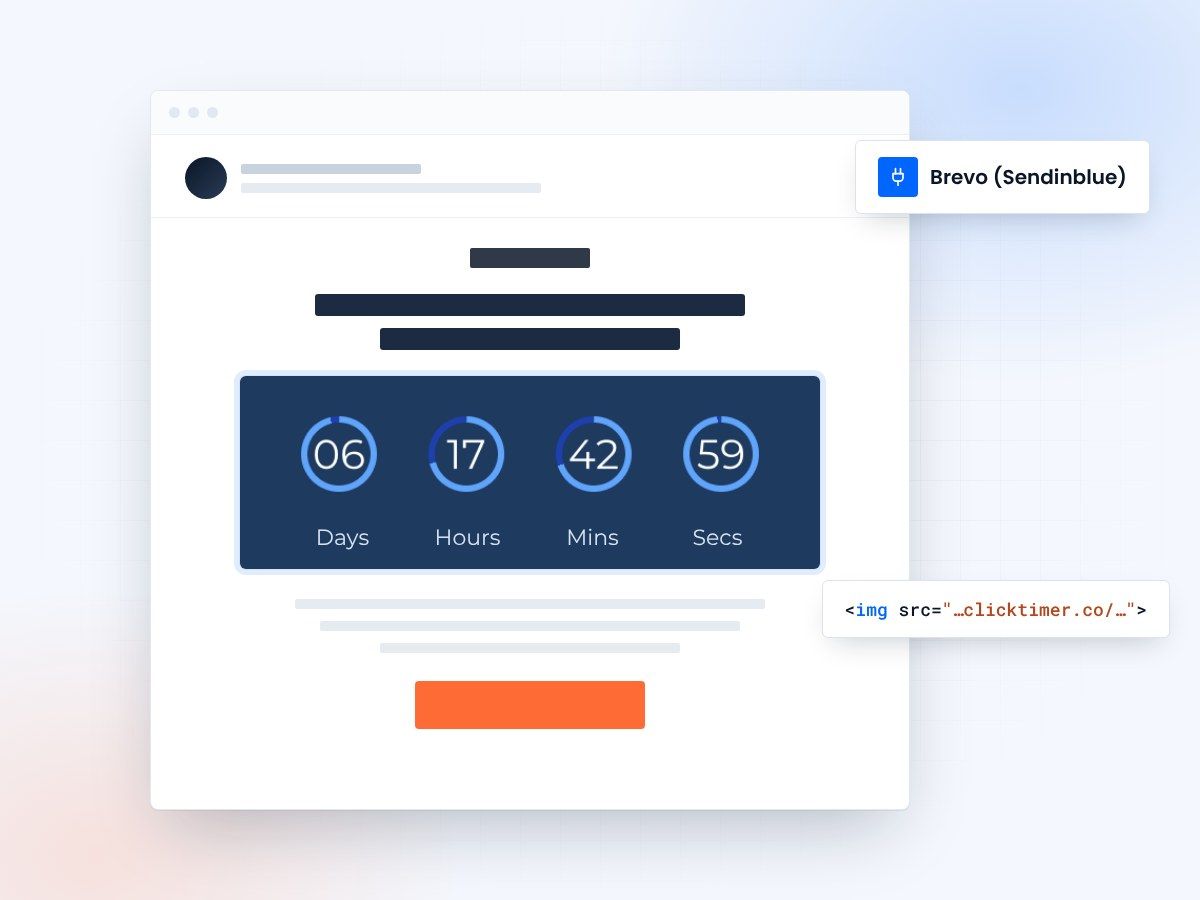
- Works in every Brevo email type
- 10,000 free impressions a month
- No watermark, even on the free plan
- Prepaid credits that never expire
Why use countdown timers in Brevo (Sendinblue)
Brevo (formerly Sendinblue) has grown into one of Europe's most popular email marketing platforms, known for its generous free plan, transactional email capabilities, and multi-channel marketing features. For Brevo users looking to increase conversions, countdown timers are one of the most effective tactics available.
A live countdown timer in your Brevo emails creates immediate visual urgency. When subscribers see a timer ticking down to zero, they're far more likely to click through and take action. This psychological principle — known as the scarcity effect — is well-documented in marketing research and consistently drives higher engagement rates.
ClickTimer is the perfect companion for Brevo users. It's a European tool (like Brevo itself), uses a simple pay-as-you-go model, offers a free tier with no watermark, and works seamlessly with Brevo's drag-and-drop email editor. Setup takes just 30 seconds.
Step-by-step: adding a ClickTimer to Brevo
Follow these steps to add a countdown timer to your Brevo email campaign:
- Create your timer on ClickTimerHead to clicktimer.co and configure your countdown. Set your deadline date and time, select a timezone, choose from 900+ Google Fonts, and pick colors that match your Brevo email template. Copy the generated HTML code.
- Open Brevo's email editorIn your Brevo account, navigate to Campaigns → Email and create a new campaign or edit an existing draft. Brevo's drag-and-drop editor will open, where you can design your email.
- Add an HTML blockDrag an HTML block from Brevo's content panel into your email. Paste the ClickTimer code and the countdown timer will appear in your email design.
- Add a click-through linkIn ClickTimer, set the timer's link to your offer or landing page. The embed code already contains it, so when recipients click the countdown timer, they're taken directly to where they can convert.
- Preview, test, and sendUse Brevo's preview mode to check the timer on desktop and mobile views. Send a test email to yourself to verify the animation works. Then schedule or send your campaign.
Using countdown timers in Brevo automations
Brevo's automation workflows (formerly called "Automation" in Sendinblue) are perfect for countdown timer campaigns. Here are three proven scenarios:
Welcome offer countdown
When a new subscriber joins your list, trigger an automation that sends a welcome email with a 48-hour discount timer. The visual countdown makes the limited-time nature of the offer unmissable.
Abandoned cart recovery
Brevo's ecommerce tracking integrations let you trigger emails when someone abandons their cart. Adding a countdown timer ("Your cart expires in 24 hours") significantly boosts recovery rates.
Re-engagement campaigns
For inactive subscribers, send a "We miss you" email with a countdown timer for a win-back offer. The ticking timer adds urgency that plain text cannot.
Create your Brevo countdown
Set the deadline, match your Brevo template, copy the HTML code. 10,000 free impressions a month, no credit card.
Already have an account?
Send Test Email
Enter your email to receive a preview of how this countdown looks in email campaigns.
Why ClickTimer is ideal for Brevo users
| Feature | ClickTimer | Sendtric | MailTimers |
|---|---|---|---|
| Free tier | 10K impressions, no watermark | Free with watermark | No free tier |
| Pricing | Pay-as-you-go from €0.23/10K | Premium plans available | From €49/month |
| Fonts | 900+ Google Fonts | Basic fonts | Limited selection |
| European based | Yes (France) | No | Europe |
| Brevo compatible | Yes | Yes | Yes |
ClickTimer pricing for Brevo users
Brevo is known for its affordable pricing, and ClickTimer follows the same philosophy. No subscriptions, no commitments — just pay for what you use:
Both ClickTimer and Brevo are French companies, so if GDPR compliance and European data processing matter to you, this is a winning combination. Check our full pricing comparison for more details.
| Impressions | Price |
|---|---|
| 0 – 10,000 | Free (no watermark) |
| 10K – 150K | €0.23 per 10K impressions |
| 150K – 1M | €0.15 per 10K impressions |
| 1M+ | €0.06 per 10K impressions |
Related guides
Explore more ClickTimer tutorials: HubSpot countdown timer setup, Mailchimp countdown timer guide, Klaviyo countdown timer setup, and our full ESP integrations hub.
Frequently asked questions
Does ClickTimer work with Brevo's new drag-and-drop editor?
Yes. ClickTimer works with both Brevo's classic editor and the newer drag-and-drop editor. Simply add an HTML block and paste the ClickTimer code — it's the same process in both editors.
I used to use Sendinblue — has anything changed?
No. Brevo is the rebranded version of Sendinblue, and the email editor works the same way. If you used countdown timers in Sendinblue, the process in Brevo is identical.
Can I use ClickTimer with Brevo's WhatsApp campaigns?
Countdown timers are designed for email (HTML image support). Brevo's WhatsApp campaigns use a different format and don't support external GIF images in the same way. For WhatsApp, consider using text-based urgency instead.
Is there a watermark on the free plan?
No. ClickTimer's free tier (up to 10,000 impressions) includes no watermark whatsoever. This is rare — most free timer tools like Sendtric add their branding to your timer.
Add your first Brevo countdown today
Create your first countdown timer in 30 seconds.