Add a Countdown Timer to HubSpot Emails
Drive urgency in your HubSpot email campaigns with a live countdown timer — no coding, no watermark, setup in 30 seconds.
Create Your Timer — Free 10,000 free impressions a month · No watermark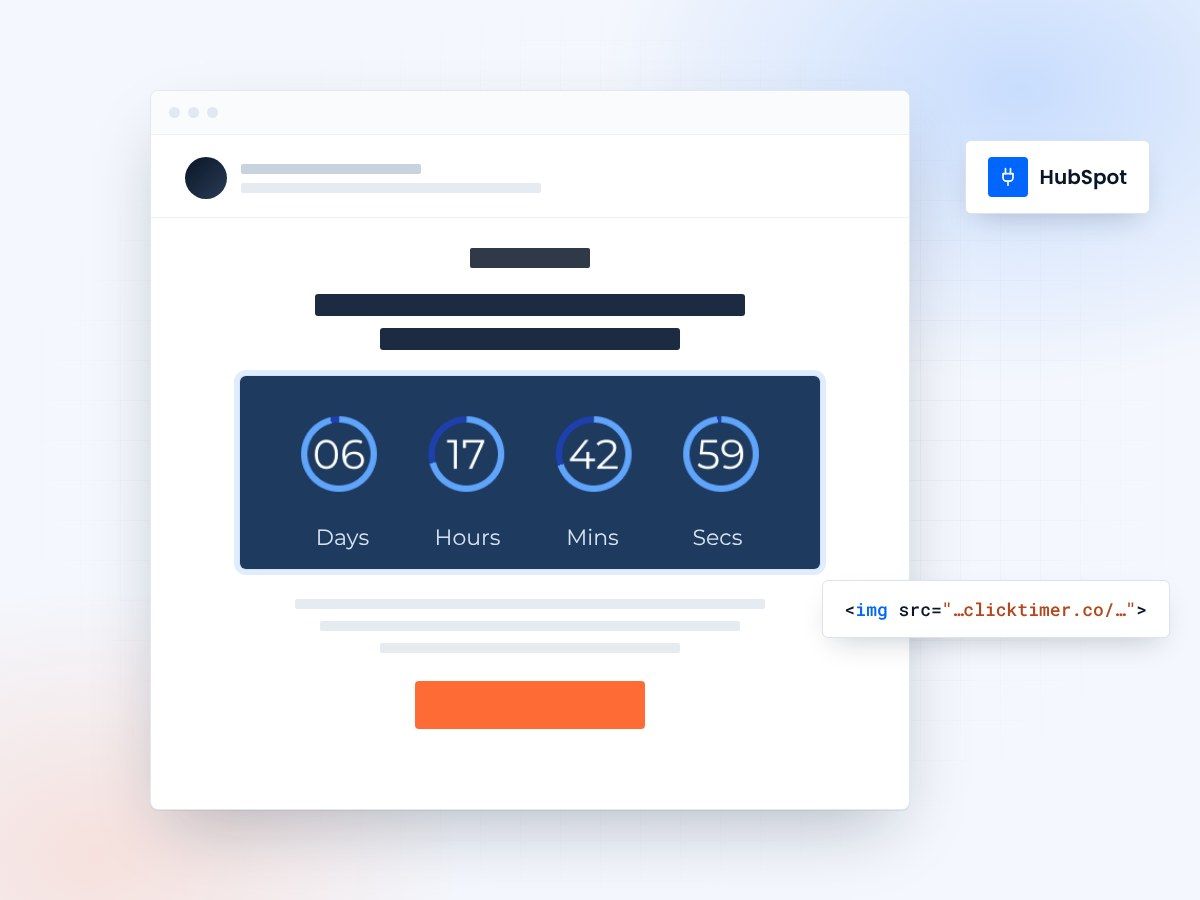
- Works with every HubSpot plan
- Set up in about a minute
- 10,000 free impressions a month
- No watermark, even on the free plan
Why add countdown timers to HubSpot emails
HubSpot is the all-in-one marketing, sales, and service platform trusted by over 200,000 businesses worldwide. Its email marketing tool is powerful, but like any email platform, getting recipients to act quickly is always a challenge. Countdown timers solve this by creating visual, real-time urgency that static text cannot replicate.
Whether you're running a product launch, a limited-time discount, or a registration deadline for an upcoming event, a countdown timer in your HubSpot email shows recipients exactly how much time they have left. This simple addition can boost click-through rates by 30% or more, according to email marketing benchmarks.
With ClickTimer, adding a countdown timer to any HubSpot email takes less than 30 seconds. It works with HubSpot's drag-and-drop editor, requires no technical knowledge, and the free tier includes up to 10,000 impressions with no watermark — a feature that's rare among countdown timer providers.
Adding a ClickTimer to HubSpot
Here's how to add a live countdown timer to your HubSpot marketing email in five simple steps:
- Configure your timer on ClickTimerVisit clicktimer.co and set up your countdown. Choose your deadline, timezone, language, and design. ClickTimer offers 900+ Google Fonts, so you can match your HubSpot email template's typography precisely. Copy the generated HTML code.
- Open your HubSpot email editorIn HubSpot, go to Marketing → Email → Create email (or open an existing draft). HubSpot's drag-and-drop editor makes it simple to place content blocks exactly where you need them.
- Insert a rich text moduleDrag a "Rich text" module into your email layout. Open Advanced → Source code and paste the ClickTimer code. The countdown timer preview will appear in the editor.
- Set the timer linkIn ClickTimer, set the timer's link to your offer's landing page. The embed code already contains it. This makes the entire countdown timer clickable, turning visual urgency into a direct conversion driver.
- Test and sendUse HubSpot's "Send test email" feature to verify the timer looks correct in your inbox. Check it on both desktop and mobile. Once satisfied, schedule or send your campaign.
Using countdown timers in HubSpot workflows
HubSpot Workflows are where countdown timers truly shine. Here are three high-converting workflow scenarios where adding a timer can transform your results:
Deal-stage email sequences
When a contact reaches the "Decision" stage in your CRM pipeline, trigger a workflow that sends a time-limited offer with a countdown timer. This nudges warm leads toward closing.
Free trial expiration
If you're a SaaS company using HubSpot, send a countdown email 3 days before trial expiration. The visual timer creates more urgency than text saying "your trial ends soon."
Webinar registration deadlines
HubSpot's event marketing integrations work perfectly with countdown timers. Add a timer to each reminder email showing the exact time until the webinar starts.
ClickTimer vs other timer options for HubSpot
| Feature | ClickTimer | MailTimers | CountdownMail |
|---|---|---|---|
| Free tier | 10,000 impressions, no watermark | No free tier | Limited free plan |
| Pricing | Pay-as-you-go from €0.23/10K | From €49/month | From $9/month |
| Fonts | 900+ Google Fonts | Limited selection | Limited selection |
| HubSpot compatible | Yes (all plans) | Yes | Yes |
Create your HubSpot countdown
Set the end date, match your brand, copy the code. 10,000 free impressions a month, no credit card.
Already have an account?
Send Test Email
Enter your email to receive a preview of how this countdown looks in email campaigns.
ClickTimer pricing for HubSpot users
ClickTimer's pay-as-you-go pricing makes it cost-effective for HubSpot users at every scale:
| Impressions | Price |
|---|---|
| 0 – 10,000 | Free (no watermark) |
| 10K – 150K | €0.23 per 10K impressions |
| 150K – 1M | €0.15 per 10K impressions |
| 1M+ | €0.06 per 10K impressions |
If you're on HubSpot Free or Starter and sending up to 10,000 emails per month, ClickTimer is completely free. For larger HubSpot plans with bigger lists, the pay-as-you-go model means you only pay for what you use — compare that to MailTimers' €49/month flat fee.
Frequently asked questions
Does ClickTimer work with HubSpot Free CRM?
Yes. ClickTimer works with all HubSpot plans — Free, Starter, Professional, and Enterprise. As long as you can add a rich text module to your email, you can use ClickTimer.
Can I use ClickTimer in HubSpot sequences (sales emails)?
HubSpot sequences send plain-text-style emails through the CRM. You can include the timer code in an HTML email, but sequences are primarily text-based. For best results, use ClickTimer in HubSpot marketing emails and workflow emails.
Does the countdown update in real time?
The countdown updates each time the email is opened. Since it's a GIF generated server-side by ClickTimer, it recalculates the remaining time on every open, ensuring recipients always see an accurate countdown.
Can I track timer impressions in HubSpot?
HubSpot tracks email opens and clicks as usual. ClickTimer also provides impression tracking in your ClickTimer dashboard, so you can monitor timer views alongside your HubSpot analytics.
Timer guides for other platforms
Looking for timer guides for other platforms? Check out our ActiveCampaign countdown timer tutorial, Klaviyo timer setup, and our complete ESP integrations hub.
Try ClickTimer free
Create your first countdown timer in 30 seconds.