Pre-Order Countdown Email Campaigns
Build anticipation and drive pre-order sales with countdown urgency
Create Your Timer — Free 10,000 free impressions a month · No watermark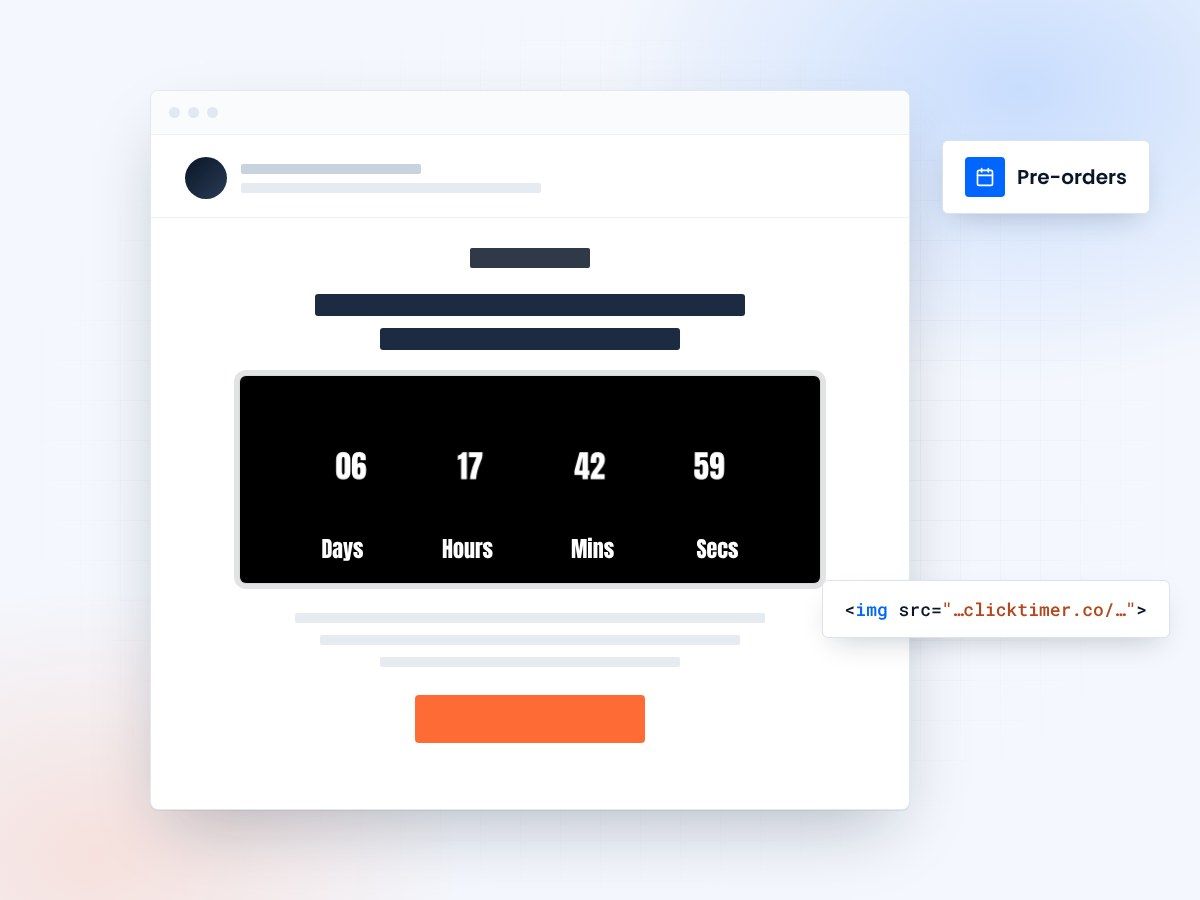
- Three-phase pre-order framework
- Works with every email platform
- 10,000 free impressions a month
- No watermark, even on the free plan
Why pre-order campaigns need countdown timers
Pre-orders are built on anticipation. Whether you're launching a new product, a limited edition collection, or a digital release, the entire value proposition rests on creating enough excitement and urgency to get people to commit before they can even try the product. Countdown timers are the perfect tool for this — they transform vague anticipation into concrete, ticking urgency.
Consider the difference: "Pre-orders open next week" versus an email showing "Pre-orders open in 3 days, 7 hours, 42 minutes" with a live countdown. The first is information. The second is an event. It creates a mental bookmark, a reason to check back, a fear of missing the window.
Apple, Nike, and gaming companies have mastered this art — they build countdown-driven hype machines around product launches. The good news? You don't need a Fortune 500 budget to do the same. With email countdown timers, any brand can create launch-day excitement that drives pre-order conversions.
The pre-order email campaign framework
A successful pre-order countdown campaign has three phases: the tease, the launch window, and the close. Each phase uses countdown timers differently:
| Phase | Emails | Countdown target | Goal |
|---|---|---|---|
| Tease | 2-3 emails over 1-2 weeks | Pre-order launch date | Build anticipation + waitlist |
| Launch Window | 1-2 emails on launch day | Early-bird deadline | Drive immediate pre-orders |
| Close | 2-3 emails over final days | Pre-order window closing | Capture remaining demand |
From first tease to final call
Phase 1: The tease — countdown to launch
Start building excitement 1-2 weeks before pre-orders open. Each teaser email should include a ClickTimer countdown to the pre-order launch date. This serves two purposes: it creates anticipation, and it trains subscribers to watch for the launch email.
Teaser email content should progressively reveal more about the product. Email one might be cryptic ("Something big is coming in [countdown]"). Email two reveals a detail or feature. Email three shows the product with full specs. The countdown is the connective tissue that ties the sequence together.
Include a "Notify me" or waitlist CTA in teaser emails. This builds a high-intent segment you can prioritize on launch day — and gives you a data point on expected demand.
Phase 2: Launch window — early-bird countdown
When pre-orders open, switch the countdown target from "pre-orders open" to "early-bird pricing ends" or "first batch sells out." This maintains urgency even after the initial launch excitement fades.
The launch email should feature the countdown prominently above the fold, paired with the product hero image. Below, include key details: what's included, pricing, shipping estimate, and a strong CTA. The countdown creates the "why now" that product details alone don't provide.
Phase 3: The close — final window countdown
The final days of your pre-order window are where countdown timers have the biggest impact. Send 2-3 emails in the last 72 hours, each with an increasingly urgent countdown showing the pre-order window closing.
Structure the closing sequence: 72-hour warning with social proof ("2,300 people already pre-ordered"), 24-hour warning with a testimonial or unboxing preview, and a same-day final notice with the countdown showing hours and minutes. Each email should have a single, prominent "Pre-Order Now" CTA directly below the countdown.
Post-close, send a "Pre-orders are closed" email to non-buyers. Include a countdown to the next opportunity (general availability, second batch, or waitlist) to capture deferred demand and build your list for the next launch.
Pre-order countdown strategies by product type
Physical products and limited editions
Focus on scarcity. Countdown to "pre-order window closes" combined with limited quantities. Works brilliantly for fashion drops, collectibles, and artisan goods.
Digital products and courses
Countdown to "founding member pricing ends." Digital products don't have inventory limits, so the urgency must come from pricing tiers or bonus access. "Pre-order before [countdown] to get lifetime access at 40% off."
Tech and gadgets
Countdown to shipping date — "Pre-order now, ships in [countdown]." Tech buyers want to be first. The countdown to ship date doubles as a delivery promise and a priority indicator.
Books and media
Countdown to release date. "Read it first — releases in [countdown]. Pre-order now for day-one delivery." For authors, combine with exclusive bonuses (signed copies, bonus chapters) that expire with the countdown.
Create your pre-order countdown
Pick your launch, early-bird or closing date and paste the timer into any email platform. 10,000 free impressions a month, no credit card.
Already have an account?
Send Test Email
Enter your email to receive a preview of how this countdown looks in email campaigns.
Setting up pre-order countdown timers
With ClickTimer, setting up your pre-order countdown takes 30 seconds. Choose your countdown end date (pre-order launch, early-bird deadline, or window close), customize the look with 900+ Google Fonts and your brand colors, and paste the HTML code into your email template.
ClickTimer works with every email platform — Mailchimp, Klaviyo, Omnisend, Shopify Email, and more. The GIF-based timer displays perfectly across all email clients, updating in real-time on every open.
Pricing is designed for growing brands: 10,000 impressions free (no watermark), then just €0.23/10K. A pre-order campaign sending 5 emails to 2,000 subscribers might generate 15,000 impressions total — that's less than €1.50 for the entire campaign. Compare that to MailTimers at €49/month and the math speaks for itself.
Frequently asked questions
Should I use different countdown targets for different emails?
Yes. Use countdown-to-launch in teaser emails, countdown-to-early-bird in launch emails, and countdown-to-close in final emails. Each phase has its own deadline, keeping urgency fresh throughout the campaign.
How do countdown timers work with Shopify pre-orders?
If you're using Shopify's pre-order apps, embed the ClickTimer countdown in your Shopify Email or connected ESP templates. Set the countdown to your pre-order close date. For Shopify-specific tips, see our Shopify countdown timer guide.
Can I A/B test emails with and without countdown timers?
Absolutely — and you should. Most ESPs support A/B testing. Send one variant with the countdown timer and one without, keeping everything else identical. This gives you concrete data on the timer's impact on your specific audience.
What happens after the countdown reaches zero?
ClickTimer can display a custom expired message like "Pre-orders closed" or "Sold out." This is useful for subscribers who open the email after the deadline — they see a clear status instead of a confusing negative countdown.
Start your next pre-order countdown
Create your first countdown timer in 30 seconds.