Countdown Timers in Klaviyo Flows: Complete Setup
Step-by-step guide to embedding live countdown timers in your Klaviyo automated flows and sequences.
Create Your Timer — Free 10,000 free impressions a month · No watermark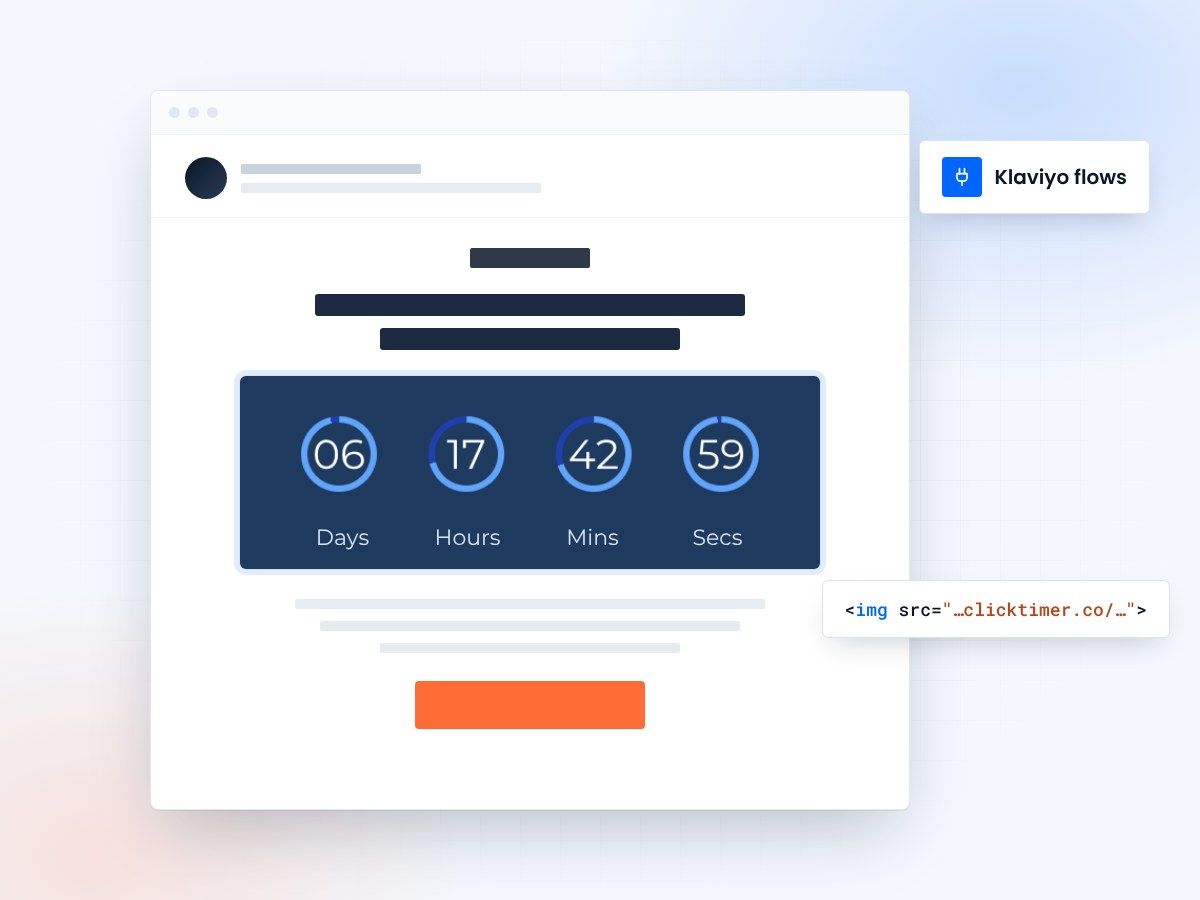
- Works in every Klaviyo flow
- Live countdown on every open
- 10,000 free impressions a month
- No watermark, even on the free plan
Why add countdown timers to Klaviyo flows?
Klaviyo flows are automated email sequences triggered by subscriber behavior — abandoned carts, welcome series, browse abandonment, winback campaigns, and more. These flows already drive significant revenue for ecommerce brands. Adding countdown timers amplifies their effectiveness by introducing real-time visual urgency.
When a subscriber opens an abandoned cart email and sees a timer counting down to a cart reservation expiry or exclusive discount ending, they are more likely to act immediately. The visual urgency of a ticking countdown converts fence-sitters into buyers. This guide shows you exactly how to set this up using ClickTimer with your Klaviyo flows.
Klaviyo flow types that benefit most
| Flow Type | Timer Use Case | Suggested Deadline | Expected Impact |
|---|---|---|---|
| Abandoned Cart | Cart reservation expiry | 24-48 hours from trigger | High |
| Welcome Series | First-purchase discount expiry | 72 hours from signup | High |
| Browse Abandonment | Limited-time offer on viewed product | 24 hours from trigger | Medium |
| Winback | Exclusive return offer expiry | 7 days from trigger | Medium |
| Post-Purchase Upsell | Cross-sell discount deadline | 48-72 hours from purchase | High |
Step-by-step: adding ClickTimer to Klaviyo flows
- Create your timer in ClickTimer.Go to the ClickTimer configurator. Set your countdown deadline — for flow emails, choose a fixed future date that aligns with your campaign. Select your font from 900+ Google Fonts, set your brand colors, and configure the timer size to fit your email layout.
- Copy the embed code.After configuring, click Get embed code, then Copy code. You will paste it into Klaviyo's email editor.
- Open your Klaviyo flow email.Navigate to the flow you want to edit (for example, Abandoned Cart). Click on the email action to open the email editor.
- Add an HTML block.In Klaviyo's drag-and-drop editor, add an HTML block where you want the countdown timer to appear, typically near the top of the email, below the headline. Paste your ClickTimer code into it.
- Preview and activate.Preview the email to confirm the timer renders correctly. The timer will show a live countdown in the preview. Save the email and ensure the flow is active.
For Klaviyo flows, the timer creates urgency around a deadline you define. For abandoned cart flows, use a 48-hour countdown. For campaign-based flows like a sale announcement, set the timer to your actual sale end date. The key is making the deadline feel real and relevant to the subscriber.
Abandoned cart flow: detailed setup
The abandoned cart flow is where countdown timers deliver the highest ROI. Here is the recommended email sequence with timer integration:
- Email 1 (1 hour after abandonment)Reminder email without a timer. "You left something behind." This is a gentle nudge — no urgency needed yet.
- Email 2 (24 hours after abandonment)Add a countdown timer here. "Your cart is reserved for a limited time." Set the timer to expire 24 hours from this email. This creates genuine urgency that motivates action.
- Email 3 (48 hours after abandonment)Final email with a short countdown (expires in 6-12 hours). "Last chance — your items are almost gone." Include a discount code if your strategy allows it.
Create your Klaviyo flow countdown
Set the deadline, match your brand, paste the HTML code into Klaviyo. 10,000 free impressions a month, no credit card.
Already have an account?
Send Test Email
Enter your email to receive a preview of how this countdown looks in email campaigns.
Welcome series flow: timer setup
Welcome flows typically offer a first-purchase discount. Adding a countdown timer to the "your discount expires soon" email dramatically increases conversion. Set the timer to expire 72 hours after signup, and include it in the second or third email of your welcome series.
Example messaging: "Welcome! Here is 15% off your first order — but hurry, it expires in:" followed by the countdown timer, then your CTA button. This combination of a tangible incentive plus visual urgency is highly effective for converting new subscribers into first-time buyers.
Why ClickTimer is ideal for Klaviyo flows
Built for always-on flows
Klaviyo flows send emails continuously to different subscribers at different times. This means your timer impressions accumulate quickly. ClickTimer's pay-as-you-go pricing (starting at €0.23 per 10,000 impressions) makes it the most cost-effective option for always-on automated flows.
Pay for the volume you send
Compare this to subscription tools: at $10-49/month, you pay regardless of flow volume. With ClickTimer, a low-traffic flow costs pennies, and a high-traffic flow benefits from volume discounts down to €0.06/10K at 1M+ impressions. Plus, the 10,000 free monthly impressions cover small stores entirely. For full pricing details across all tools, see our pricing comparison.
Design tips for flow timer emails
Placement and size
Place the countdown timer prominently — ideally within the first scroll of the email. The timer should be large enough to read at a glance but not so large that it overwhelms the product imagery. A width of 500-600px works well in most Klaviyo email templates.
Fonts and colors
Match the timer's font and colors to your brand. ClickTimer offers 900+ Google Fonts, so you can find your exact brand typeface or something very close. Use a contrasting background color to make the timer stand out. Pair the timer with a clear, action-oriented headline like "Sale ends in:" or "Your offer expires in:" to maximize the impact. For the best overall timer tools and features comparison, see our best email countdown timer ranking.
Frequently asked questions
Can I add a countdown timer to Klaviyo automated flows?
Yes. You can add a ClickTimer countdown to any Klaviyo flow email by pasting the timer code into an HTML block. This works for abandoned cart, welcome series, winback, browse abandonment, and any other flow type.
Does the countdown timer update in real-time in Klaviyo emails?
Yes. Each time a subscriber opens the email, the GIF image is regenerated to show the accurate remaining time. This means the countdown is always current, regardless of when the email was sent or opened.
How many impressions will my Klaviyo flows use?
Each email open counts as one impression. If your abandoned cart flow sends 1,000 emails per month with an average of 2 opens each, that is roughly 2,000 impressions — well within ClickTimer's 10,000 free monthly impressions.
Can I use ClickTimer with Klaviyo and Shopify together?
Absolutely. ClickTimer is ESP-agnostic, so it works seamlessly in a Shopify + Klaviyo stack. Check our Shopify countdown timer guide for more on this setup.
Is there a free option for Klaviyo flow timers?
Yes. ClickTimer's free tier includes 10,000 impressions per month with no watermark — more than enough for most small to mid-size Klaviyo flows. See our free countdown timer guide for all your options.
Try ClickTimer free
Add real-time urgency to your Klaviyo flows in 30 seconds.