Adding Countdown Timers to WordPress Emails
Bring urgency to your WordPress newsletters and WooCommerce emails with live countdown timers.
Create Your Timer — Free 10,000 free impressions a month · No watermark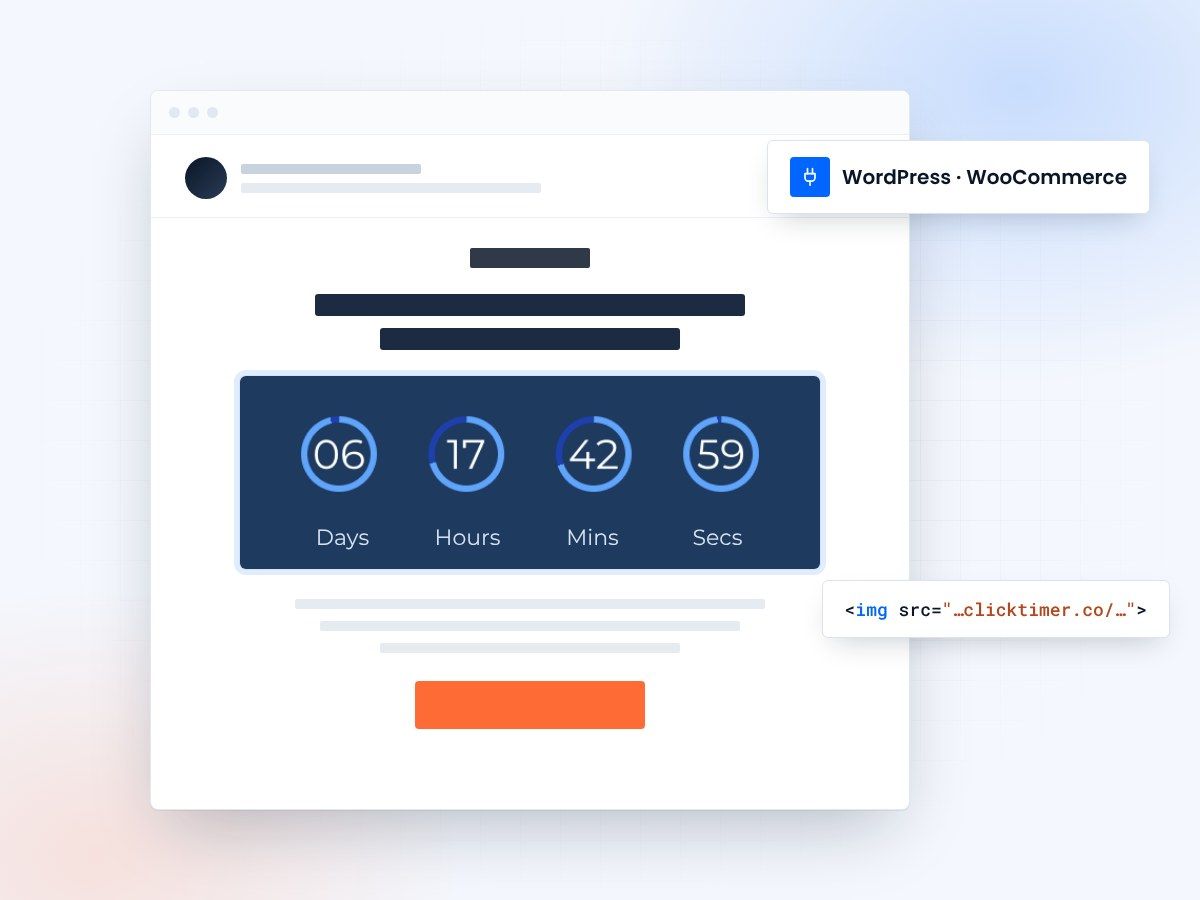
- Works with every WordPress email plugin
- No plugin to install
- 10,000 free impressions a month
- No watermark, even on the free plan
Why add countdown timers to WordPress emails
WordPress powers over 40% of all websites, and many of those sites send email newsletters, WooCommerce order notifications, or marketing campaigns directly from the WordPress ecosystem. Adding live countdown timers to these emails creates urgency that drives clicks, conversions, and revenue — yet most WordPress email plugins don't offer native timer functionality.
ClickTimer fills this gap perfectly. Because it generates timers as a standard HTML snippet, it works with every WordPress email plugin — no custom integration needed. Whether you're using WooCommerce email customizer, a newsletter plugin like MailPoet, or sending through a connected ESP, you can add a live countdown timer in under a minute.
This guide covers integration with all major WordPress email solutions, including WooCommerce transactional emails, newsletter plugins, form notification emails, and membership platforms.
WordPress email plugin compatibility
| Plugin | Type | Timer integration method | Difficulty |
|---|---|---|---|
| WooCommerce Email Customizer | Transactional | HTML block in email template | Easy |
| MailPoet | Newsletter | HTML block with timer code | Very easy |
| FluentCRM | CRM + Email | HTML block | Easy |
| Newsletter (by Suspended) | Newsletter | HTML composer block | Easy |
| Jetstter / Jeivo | Marketing | Custom HTML element | Easy |
| WP Mail SMTP + ESP | Relay | Template in connected ESP | Varies |
Three ways to add a timer in WordPress
Pick the one that matches how your site sends email.
WooCommerce emails
WooCommerce sends transactional emails for orders, shipping, refunds, and account actions. Adding a countdown timer to these high-open-rate emails is a powerful way to drive repeat purchases. For example, include a "Your 10% repeat order discount expires in:" timer in order confirmation emails.
To add a timer to WooCommerce emails, you'll need an email customizer plugin (like Jetstter for WooCommerce or Kadence WooCommerce Email Designer). These plugins let you add custom HTML blocks to your WooCommerce email templates. Simply paste your ClickTimer code into one.
For Shopify users, the process is similar but uses Shopify's email customization tools instead. The timer code works identically across both platforms.
Newsletter plugins
WordPress newsletter plugins like MailPoet and FluentCRM have visual email builders that make timer integration incredibly straightforward. In MailPoet, drag an HTML block into your email layout and paste the ClickTimer code. The timer renders live — no shortcode, no PHP, no complexity.
For FluentCRM, the process is nearly identical. Use the visual email composer, add an HTML block, and paste your ClickTimer code. FluentCRM also supports HTML blocks if you want more control over the timer's placement and surrounding markup.
If you're sending newsletters through a connected ESP (via WP Mail SMTP routing to SendGrid, Brevo, or Amazon SES), add the timer in the ESP's template editor rather than in WordPress.
Membership and course platforms
WordPress membership plugins (MemberPress, Restrict Content Pro, WishList Member) and LMS platforms (LearnDash, LifterLMS) send automated emails for enrollment, access expiration, and course deadlines. These are prime candidates for countdown timers.
For membership renewal emails, add a timer counting down to the member's access expiration date. For course platforms, use timers for assignment deadlines, module unlock dates, or certification exam windows. The personalized countdown drives action far more effectively than static text reminders.
Most membership plugins allow custom HTML in their email templates. Paste the ClickTimer code directly, or use a plugin like Zapier to dynamically generate per-user timer URLs based on their specific expiration dates.
WordPress integration checklist
- Create your timerConfigure your countdown in the builder below.
- Copy the codeClick Get embed code, then Copy code.
- Open your email editorGo to the email template you want to modify in your WordPress plugin.
- Add an HTML blockInsert an HTML block and paste the timer code.
- Set dimensionsMatch the image dimensions to your timer configuration (e.g. 600×150).
- Add alt textUse descriptive alt text like "Sale ends in [time remaining]" for accessibility.
- TestSend a test email to check the timer renders correctly in your email client.
Create your WordPress countdown
Set the end date, match your brand, copy the code. 10,000 free impressions a month, no credit card.
Already have an account?
Send Test Email
Enter your email to receive a preview of how this countdown looks in email campaigns.
More ways WordPress sites use countdown emails
Bookings and events
Beyond e-commerce and newsletters, WordPress sites can leverage countdown timers in several high-impact email scenarios. Appointment reminder emails from booking plugins (Amelia, BookingPress) benefit enormously from visual countdowns. Event ticket sales through The Events Calendar can use timers for early-bird pricing deadlines.
Forms and fundraising
Contact form follow-up emails (via WPForms or Gravity Forms) can include timers for limited-time offers triggered by form submissions. And donation campaigns on WordPress charity sites can use countdown timers to show how much time remains in a fundraising drive, creating urgency that boosts contribution rates.
Common issues and fixes
The timer doesn't show in the WordPress email preview
The most common issue WordPress users encounter is images not rendering in email previews within the WordPress admin. This is normal — email previews in WordPress often don't load external images. Send a test email to an actual inbox to verify the timer works.
The timer appears as a broken image
If the timer appears as a broken image in received emails, double-check that the full ClickTimer code is correctly pasted (no truncation) and that your email plugin isn't stripping or modifying external image URLs. Some security plugins may interfere — temporarily disable image optimization plugins that rewrite image sources.
Where do I place the timer in a PHP WooCommerce template?
For WooCommerce templates that use PHP, ensure you're placing the timer code within the appropriate template hook. If you're editing template files directly, the woocommerce_email_before_order_table hook is a popular spot for timer placement.
Frequently asked questions
Do I need to install a WordPress plugin for ClickTimer?
No. ClickTimer works via a standard HTML snippet. You don't need any WordPress plugin beyond your existing email solution. Just paste the timer code into an HTML block.
Does the timer work in WooCommerce order emails?
Yes. You'll need an email customizer plugin that lets you add custom HTML blocks to WooCommerce email templates. Paste the timer code into one.
Will the timer slow down my email delivery?
No. The timer is an external image loaded by the recipient's email client, not by your WordPress server. Your email delivery speed is unaffected.
Can I use a shortcode to insert the timer?
Most email plugins process shortcodes before sending, so you could create a simple shortcode that outputs the timer code. However, simply pasting the code directly is usually simpler and more reliable.
Is ClickTimer free for low-traffic WordPress sites?
Yes. The free tier includes 10,000 impressions per month with no watermark — more than enough for most WordPress newsletters and WooCommerce stores. No credit card required.
Add your first WordPress countdown today
Create your timer in under a minute and paste it into any WordPress email.